How to redact a PDF or screenshot on iPad
By RedactSnap ·
iPadOS has no redaction tool: Markup draws on top of a PDF or image, and its highlighter isn't fully opaque. On an iPad you can do better than on a phone, though. Split View lets you drag files straight from the Files app into RedactSnap in Safari, Apple Pencil draws boxes precisely, and a Full Page screenshot turns any web page into a PDF you can redact. The file stays on your iPad.
Redact a PDF or screenshot in Safari
The screenshots show RedactSnap at iPad size with a fictitious bank statement. Safari on iPad shows the full toolbar, as on a computer.
Step 1: Open redactsnap.com/app in Safari. Either tap Choose a file, or open the Files app beside Safari in Split View and drag the PDF or image onto the page. Tap Scan in the toolbar, then Scan document. Smart Scan lists emails, phone numbers, card numbers and US Social Security numbers.
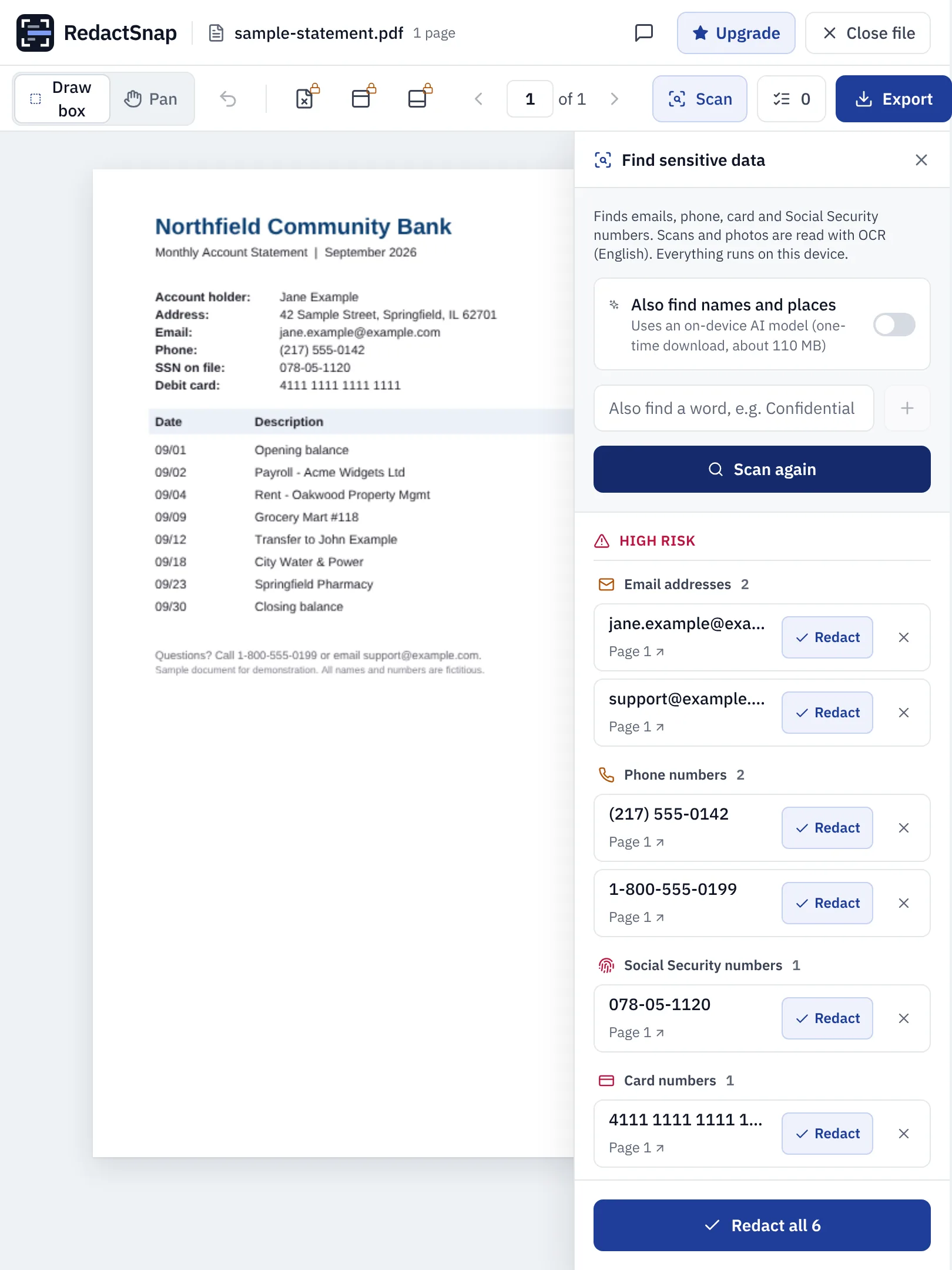
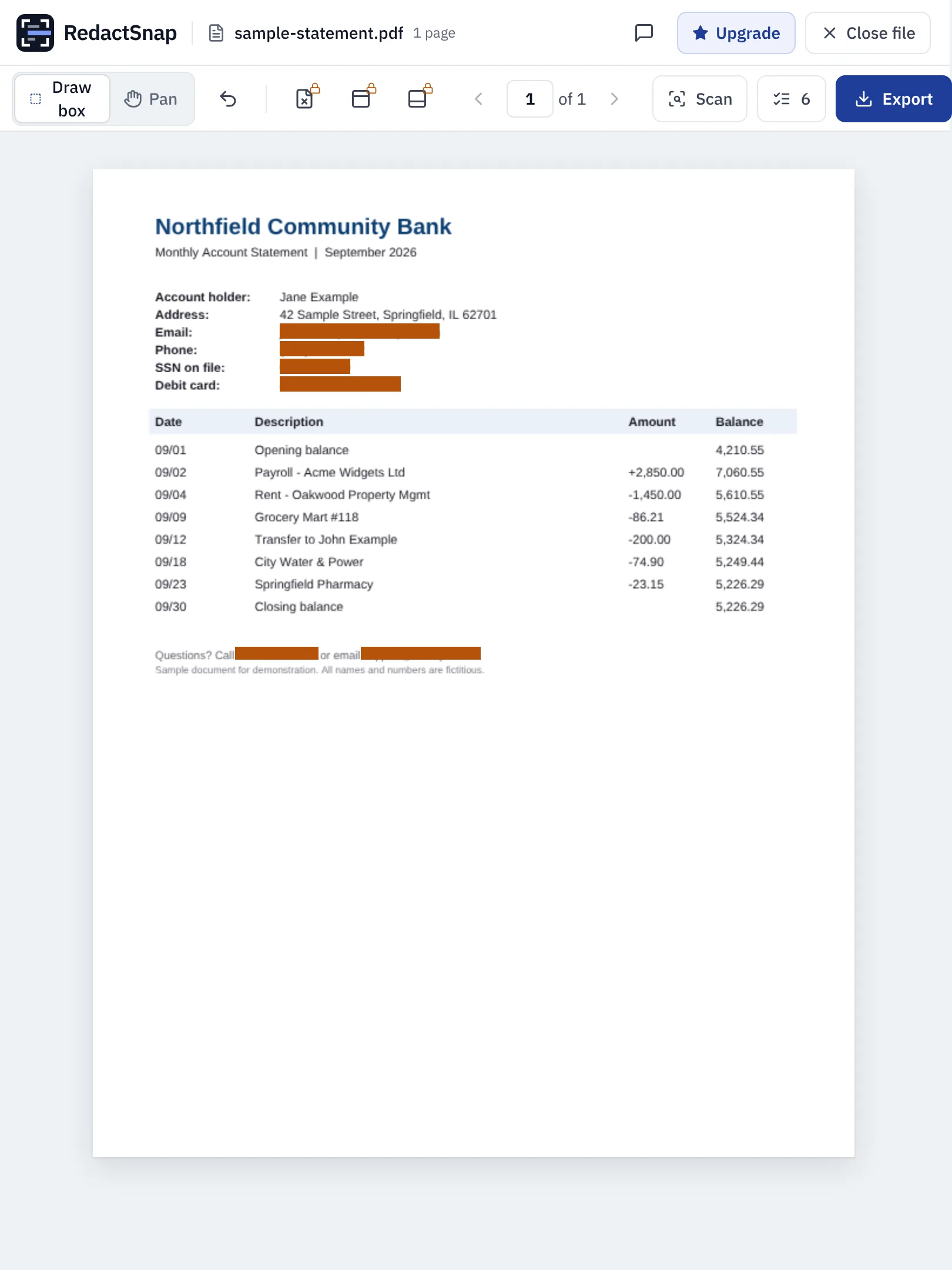
Step 2: Tap Redact all, or Redact on each item. Then draw a box over anything else, such as transactions or a signature. Apple Pencil makes it easy to cover a single word or line without catching the text around it; pinch to zoom in first for small print.
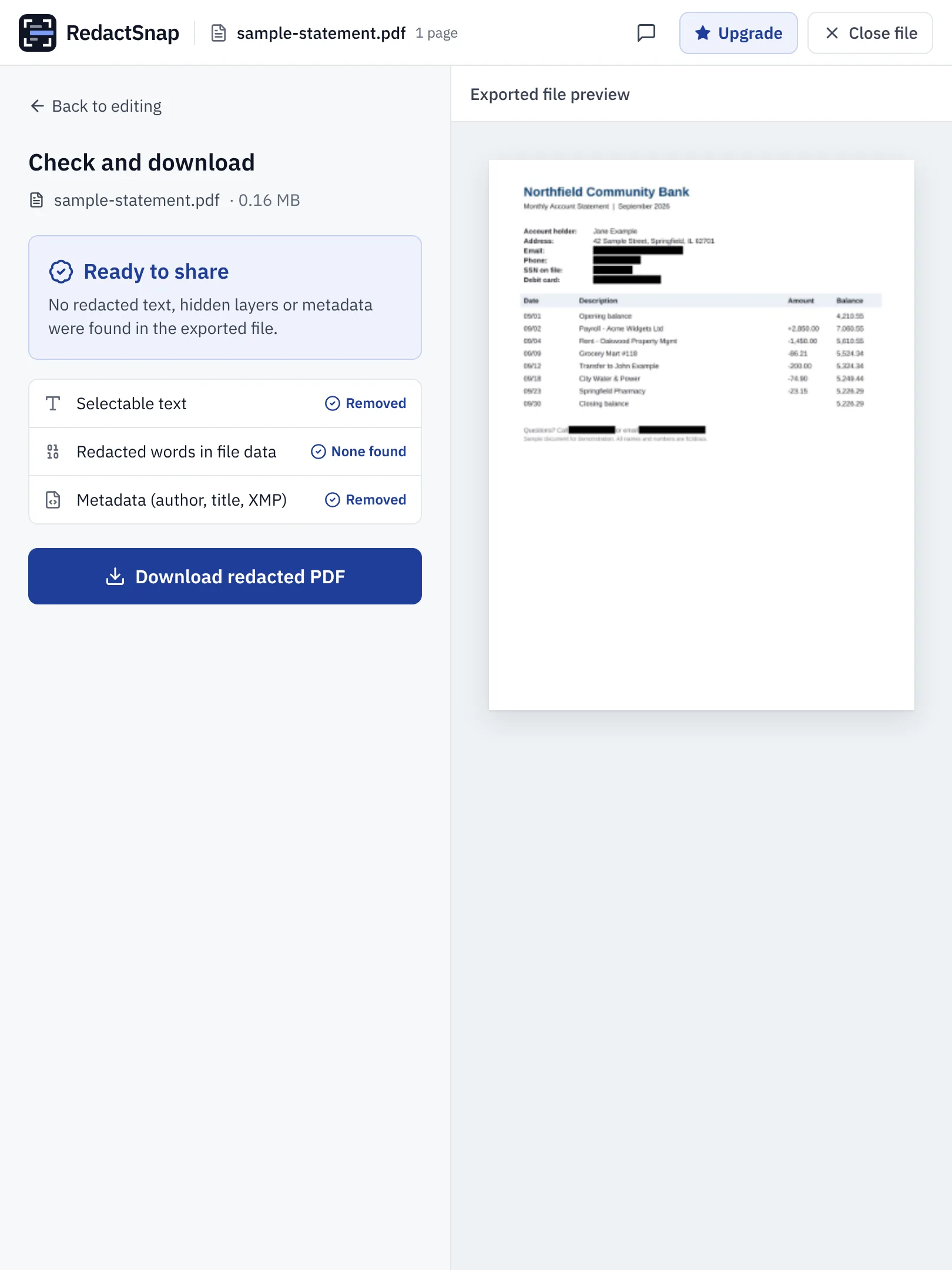
Step 3: Tap Export and confirm. Every page is flattened, and the tool checks the exported file before you download it. Tap Download; Safari saves it to the Downloads folder in Files, where you can drag it into Mail or another app in Split View.
Redact a whole web page
To share an account page, an order confirmation or a booking without its personal details, capture the whole page as a PDF first.
Step 1: In Safari, take a screenshot (top button and volume up), then tap the thumbnail.
Step 2: Choose Full Page at the top, tap Done, and choose Save PDF to Files.
Step 3: Open that PDF in RedactSnap as above, scan it, and box anything else before you export.
If you use Markup instead
For a quick screenshot, Markup can hide text with a filled shape at full opacity: tap the Add button (+), choose Add Shape, pick the square and set a solid fill. Don't use the highlighter or the Apple Pencil marker, which are translucent. For PDFs, Markup adds drawings on top of the page, so the text underneath can stay in the file and be copied or searched.
Try it on your own file
The tool opens PDFs, PNGs and JPGs in your browser. The file is not uploaded.