How to redact a work chat screenshot
By RedactSnap ·
Screenshots of work chats end up in slide decks, bug reports, incident write-ups and social posts. Besides the message you meant to show, they carry colleagues' names and photos, customers' emails and order numbers, channel and workspace names, and sometimes credentials pasted in a hurry. Cover what the audience doesn't need.
What to hide in a work chat screenshot
- Colleagues' names, photos and status messages.
- Customer emails, phone numbers, account and order numbers.
- Workspace, channel and project names, if they are confidential.
- Links, file names and previews of shared documents.
- Tokens, passwords and keys. If a real one was pasted into a chat, rotate it as well.
Redact a chat screenshot step by step
The screenshots use a fictitious chat app.
Step 1: Open redactsnap.com/app and drop in the screenshot. Click Find sensitive data, add order or ticket numbers under "Also find a word", and click Scan document. The screenshot is read with OCR, and emails and phone numbers are listed.
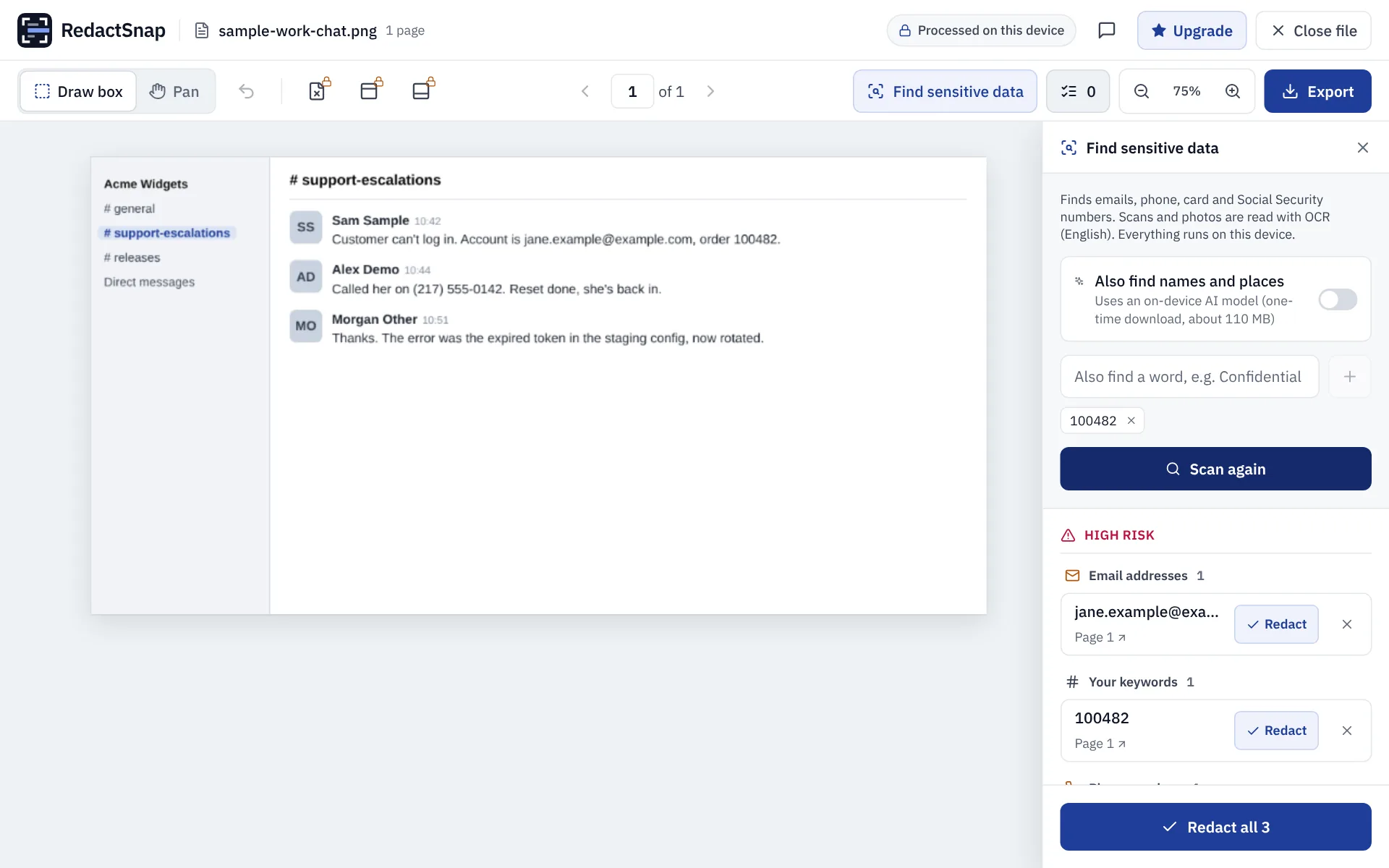
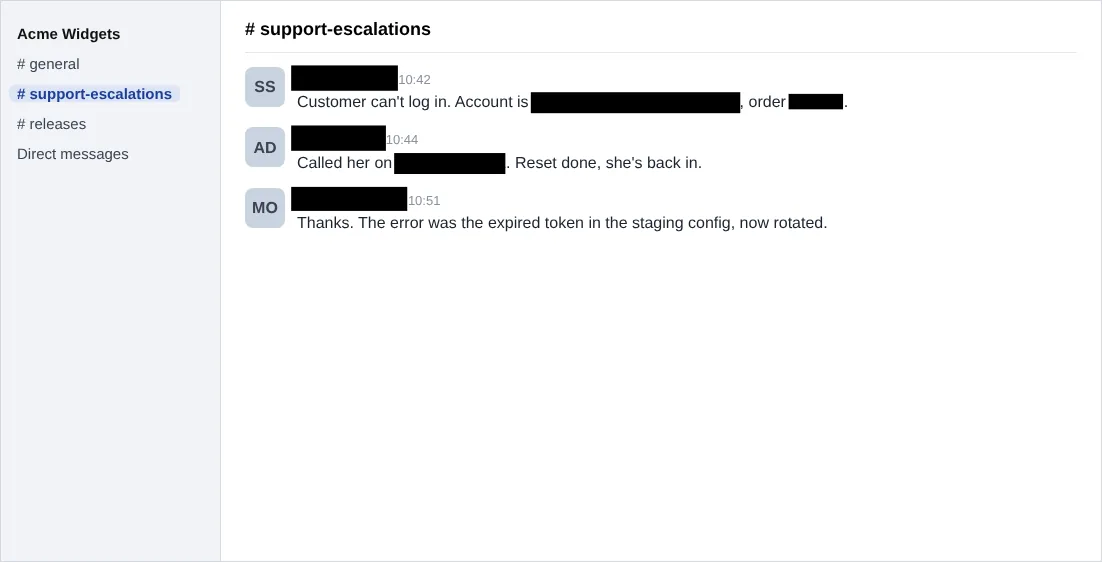
Step 2: Click Redact all, then drag boxes over each person's name, and over anything else such as channel names. For screenshots with API keys, Screenshot Studio finds keys and tokens automatically.
Step 3: Export and download a PNG with the boxes burned in.
Try it on your own file
Both tools run in your browser. The image is not uploaded.