How to redact a PDF or screenshot on Android
By RedactSnap ·
Android phones don't come with a redaction tool. Photo editors offer a pen and a highlighter, and drawing on a PDF leaves the text underneath in the file. To hide text for good, open the file in RedactSnap in Chrome, cover what you need to hide, and download a flattened copy. The file stays on your phone.
Redact a PDF, screenshot or photo in Chrome
These steps work in Chrome and other modern Android browsers. The screenshots show RedactSnap at Pixel size with a fictitious bank statement.
Step 1: Open redactsnap.com/app in Chrome and tap Choose a file. Pick a PDF from your files, or a screenshot or photo from your gallery. It opens on your phone without uploading.
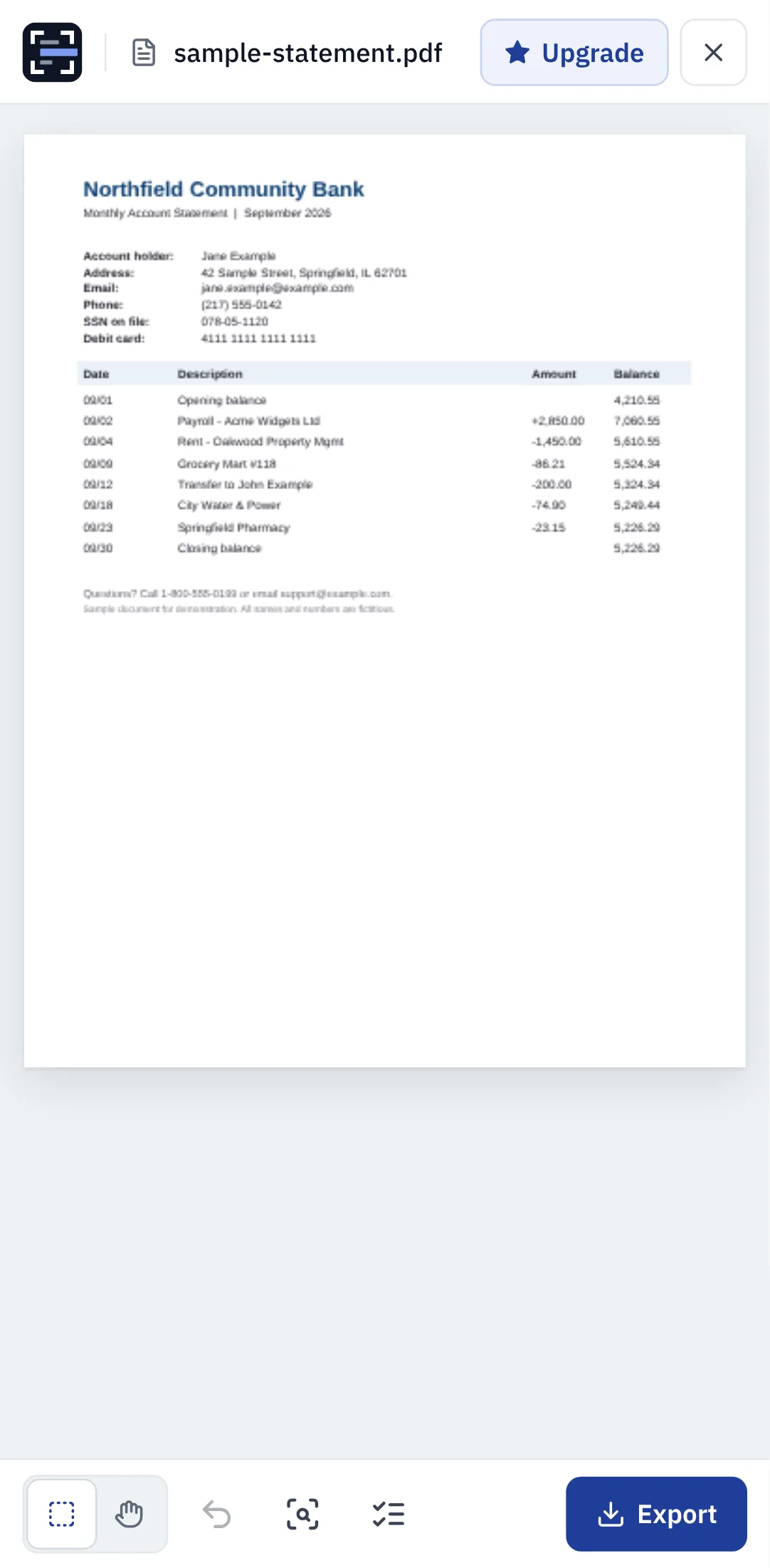
Step 2: Tap the scan button in the bottom toolbar, then Scan document. Smart Scan finds emails, phone numbers, card numbers and US Social Security numbers, and reads screenshots and scans with on-device OCR. Add any other word or number under "Also find a word".
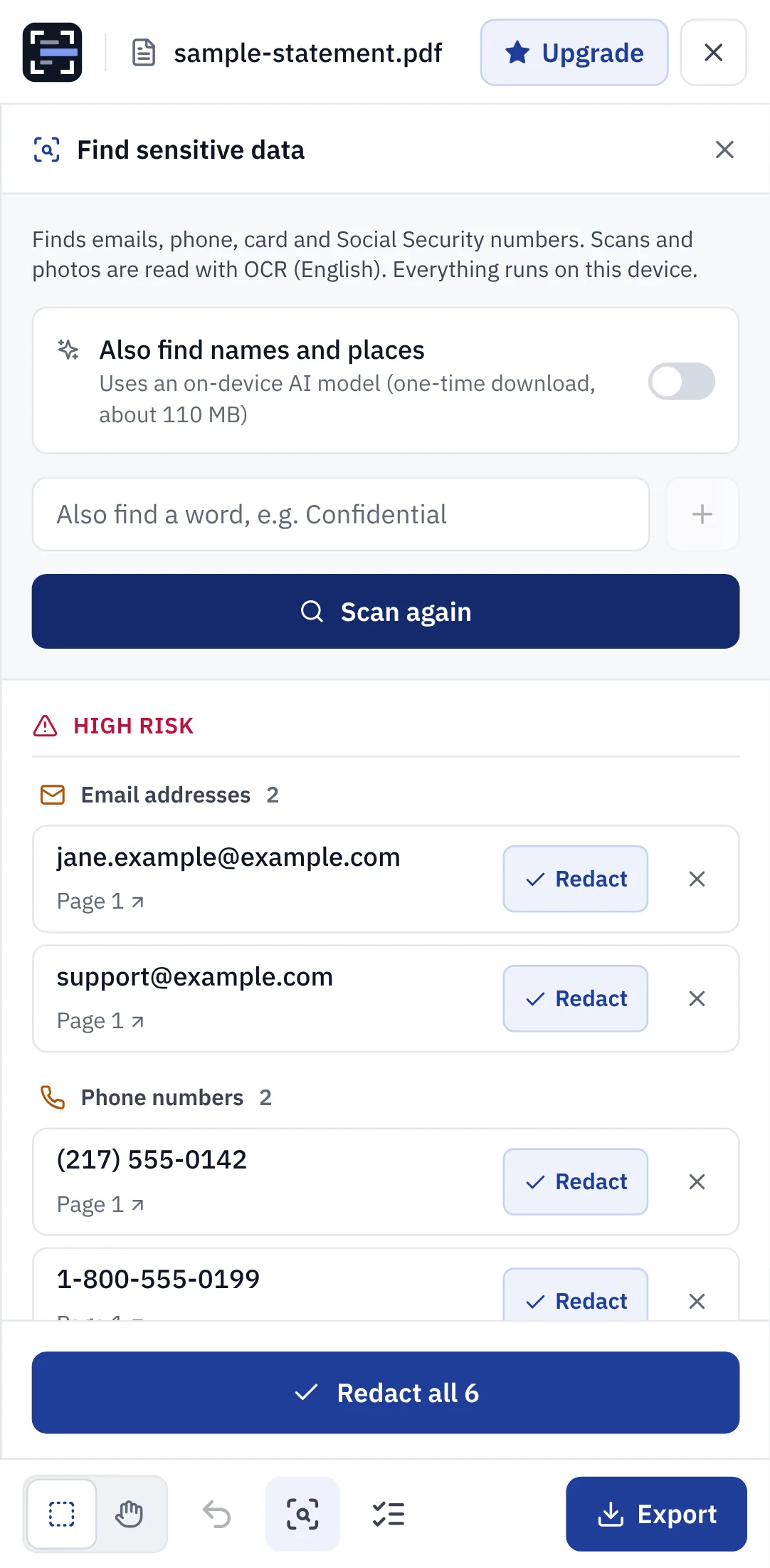
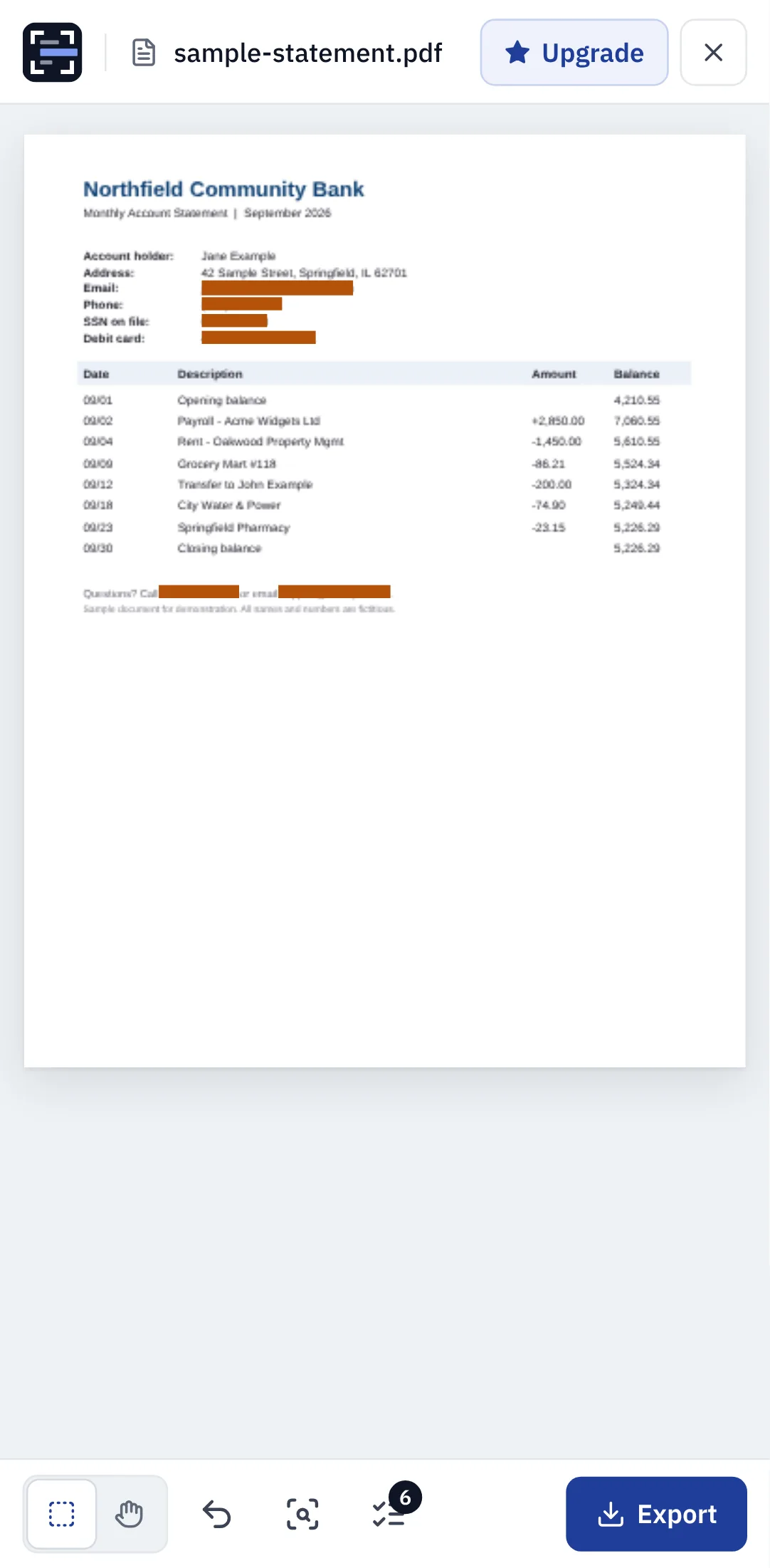
Step 3: Tap Redact all, or Redact on each item. Drag a box over anything else you want hidden.
Step 4: Tap Export and confirm. The pages are flattened, so the text under the boxes is removed, and the tool checks the exported file before you download it.
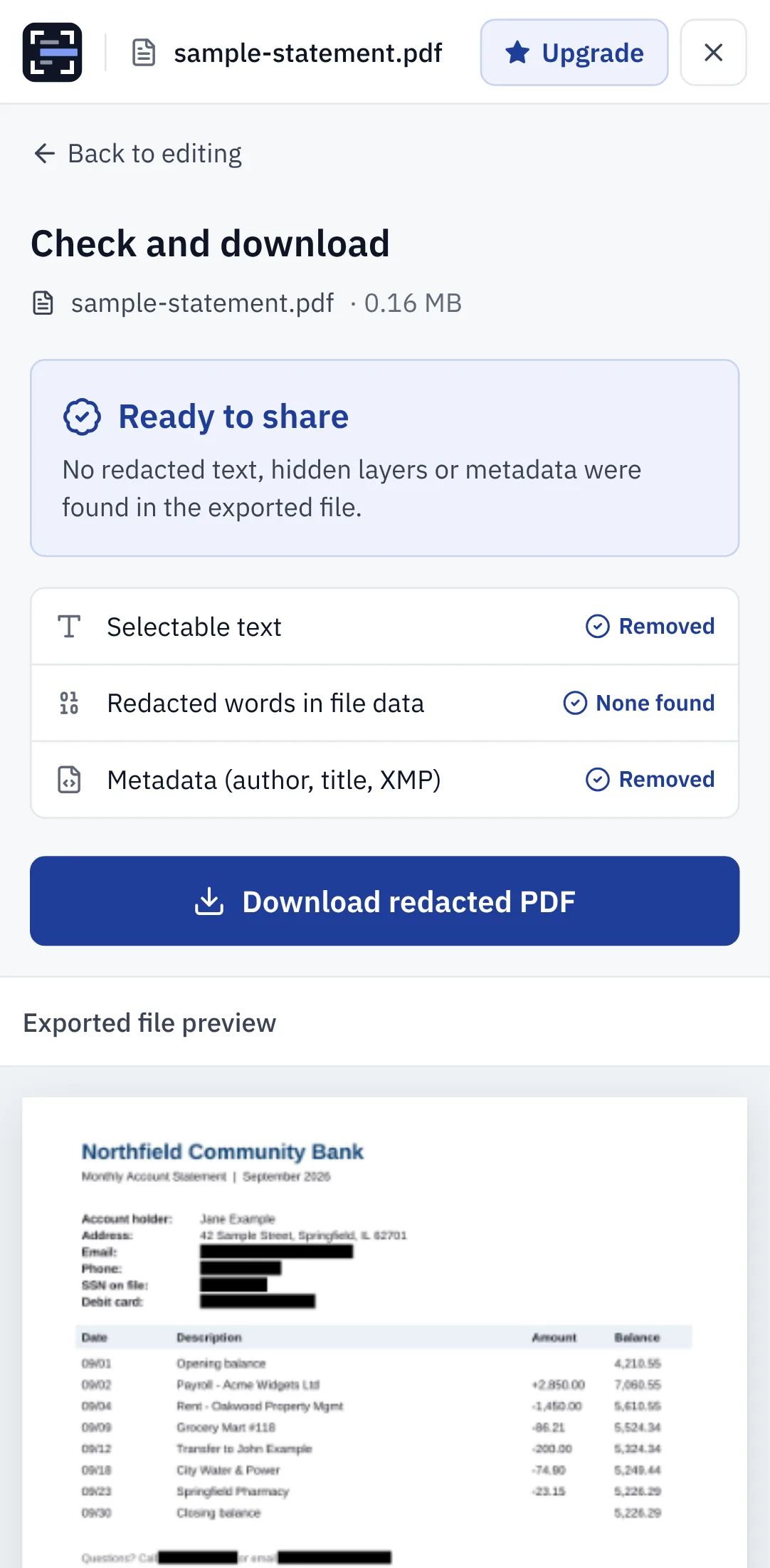
Step 5: Tap Download. Chrome saves the file to your Downloads folder. A screenshot or photo downloads as a PNG with the boxes burned in and no location data; a PDF downloads as a flattened PDF.
If you use your phone's photo editor
Google Photos, Samsung Gallery and the screenshot editors on most phones can draw on an image. If you use one, keep these limits in mind:
- Use the pen at full opacity with thick strokes, not the highlighter. Highlighter ink is translucent.
- Scribbled lines can leave gaps. Zoom in and check that no part of a letter shows through.
- Update your phone. In 2023 the "aCropalypse" bug showed that the Markup tool on Google Pixel phones had been leaving the original, uncropped image data at the end of edited screenshots since 2018. Google fixed it in the March 2023 security update, but screenshots edited before then can still hold the original.
- Your gallery may keep the original version of an edited photo. Share the edited copy, not the original.
Check before you send
- Open the downloaded file, not the one in the editor, and zoom in on every box.
- In a PDF, search for a word you hid. If it is found, the redaction didn't work.
- If a password or code was ever visible in a shared screenshot, change it.
Try it on your own file
The tool opens PDFs, PNGs and JPGs in your browser. The file is not uploaded.