How to redact a PDF or screenshot on iPhone
By RedactSnap ·
iPhone has no redaction tool. Markup, the drawing tool in Photos and Files, draws on top of a screenshot or PDF, and its highlighter isn't fully opaque. To hide text for good, open the file in RedactSnap in Safari, cover what you need to hide, and download a flattened copy. It takes about a minute, and the file stays on your phone.
Redact a PDF, screenshot or photo in Safari
This works for PDFs from the Files app or Mail, and for screenshots and photos from your library. The screenshots below show RedactSnap at iPhone size with a fictitious bank statement.
Step 1: Open redactsnap.com/app in Safari and tap Choose a file. Pick a PDF from Files, or a screenshot or photo from your library. The file opens on your phone; there is no upload.
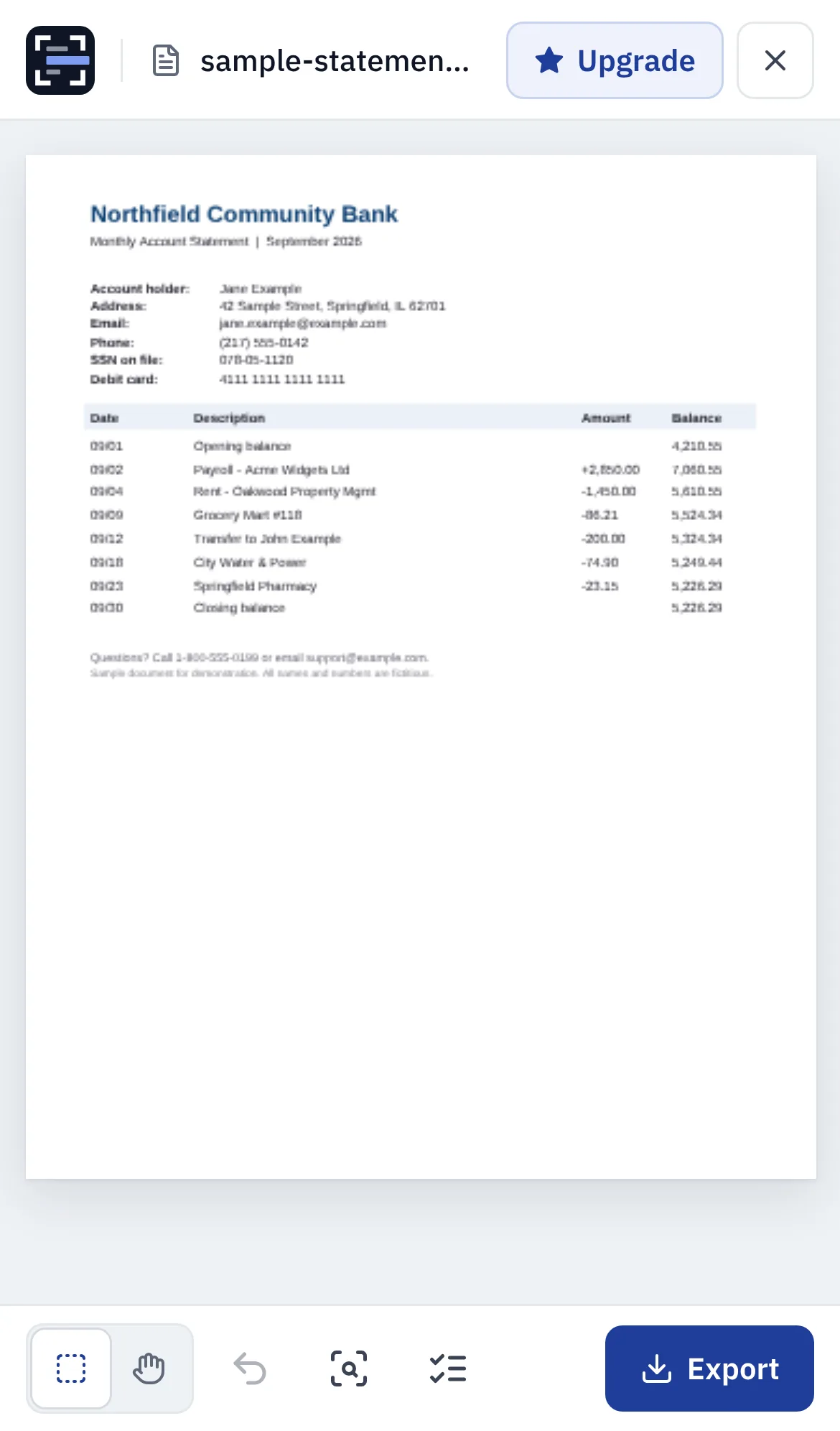
Step 2: Tap the scan button in the bottom toolbar, then Scan document. Smart Scan lists emails, phone numbers, card numbers and US Social Security numbers. To find something else, such as an account number, type it in "Also find a word" first.
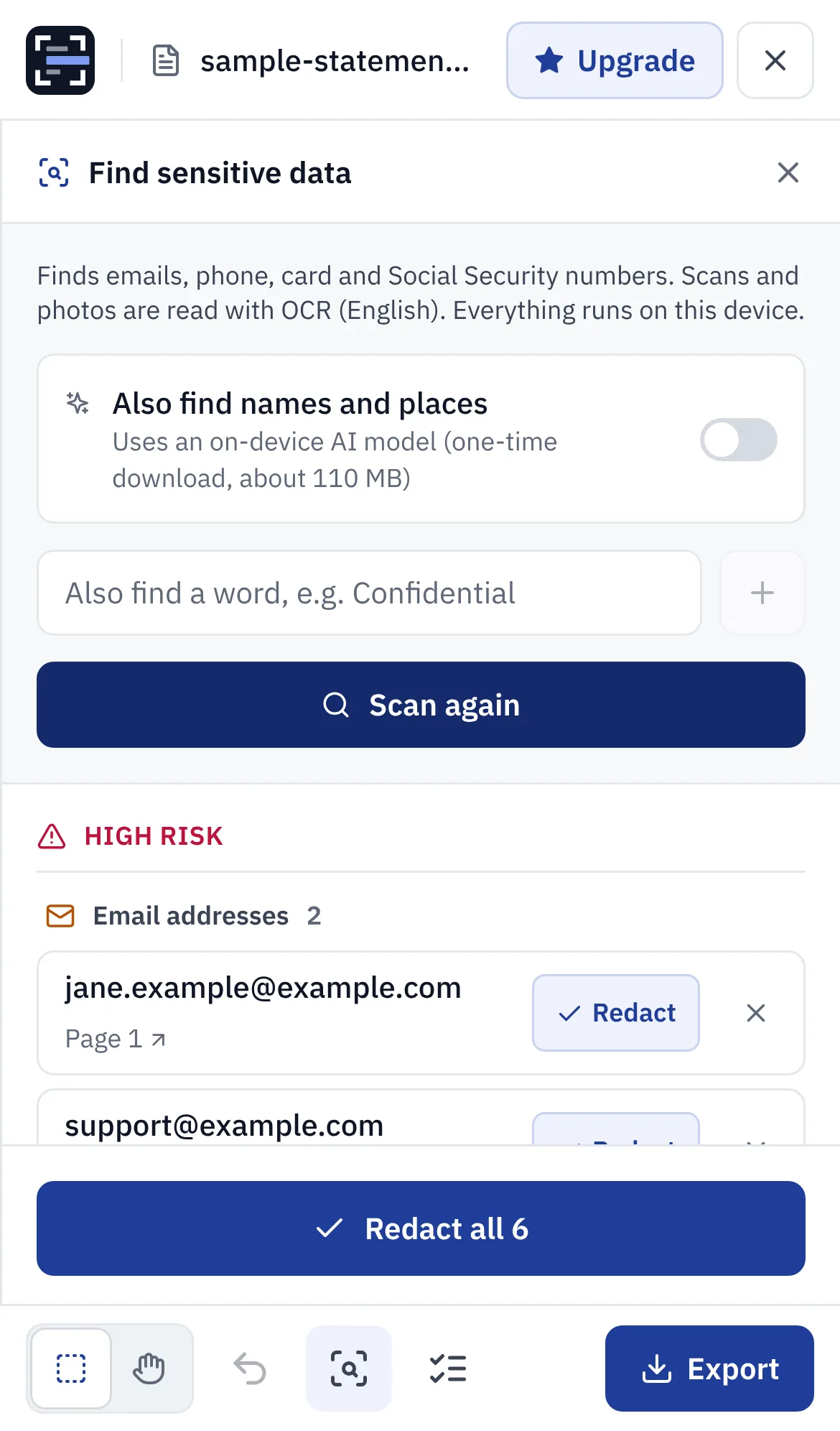
Step 3: Tap Redact all, or Redact on each item you want hidden. To cover anything else, such as a transaction or a signature, drag a box over it on the page with the box tool.
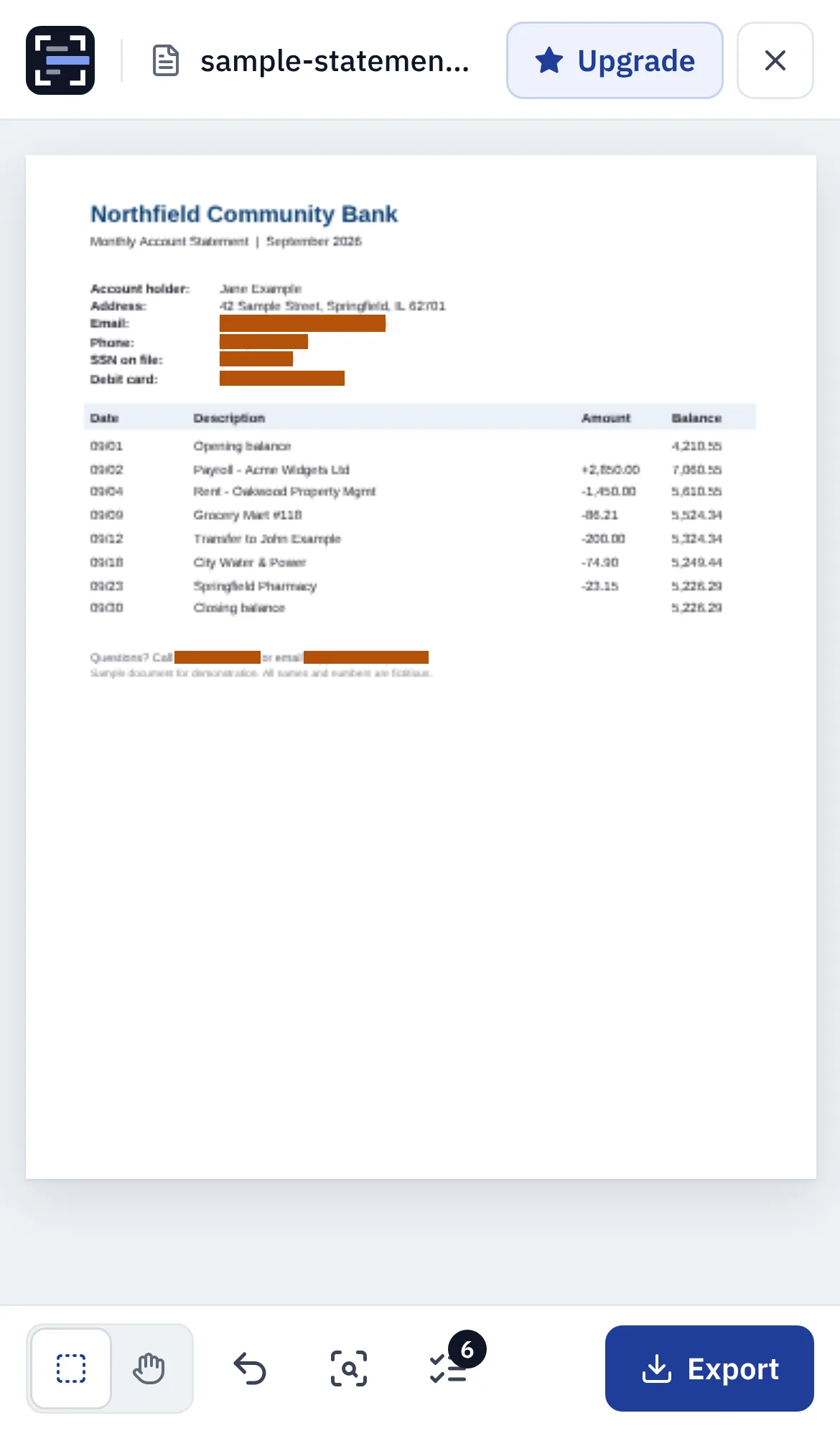
Step 4: Tap Export, then Export again. Every page is flattened to an image, so the text under each box is removed, along with hidden layers and the document's metadata.
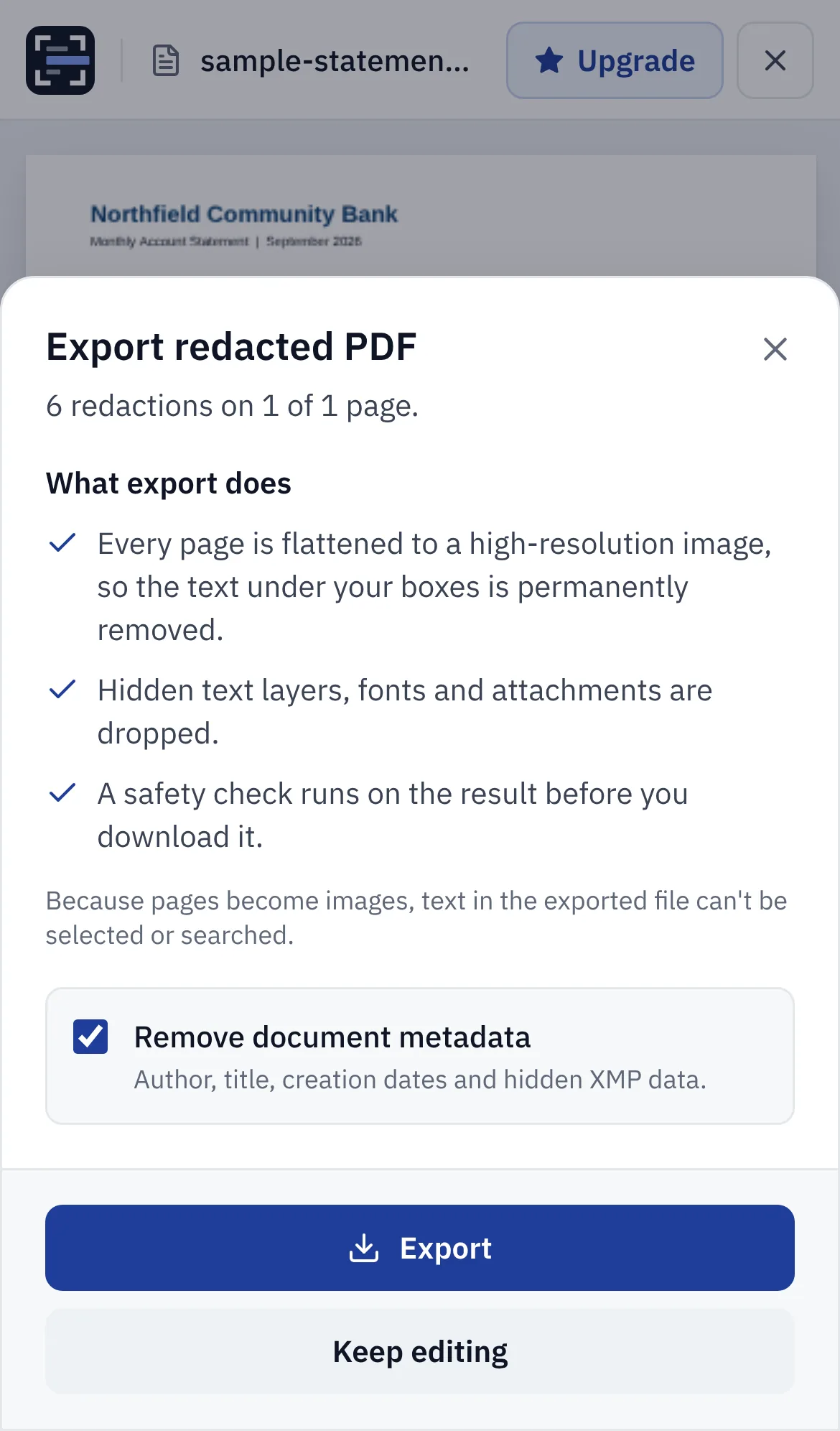
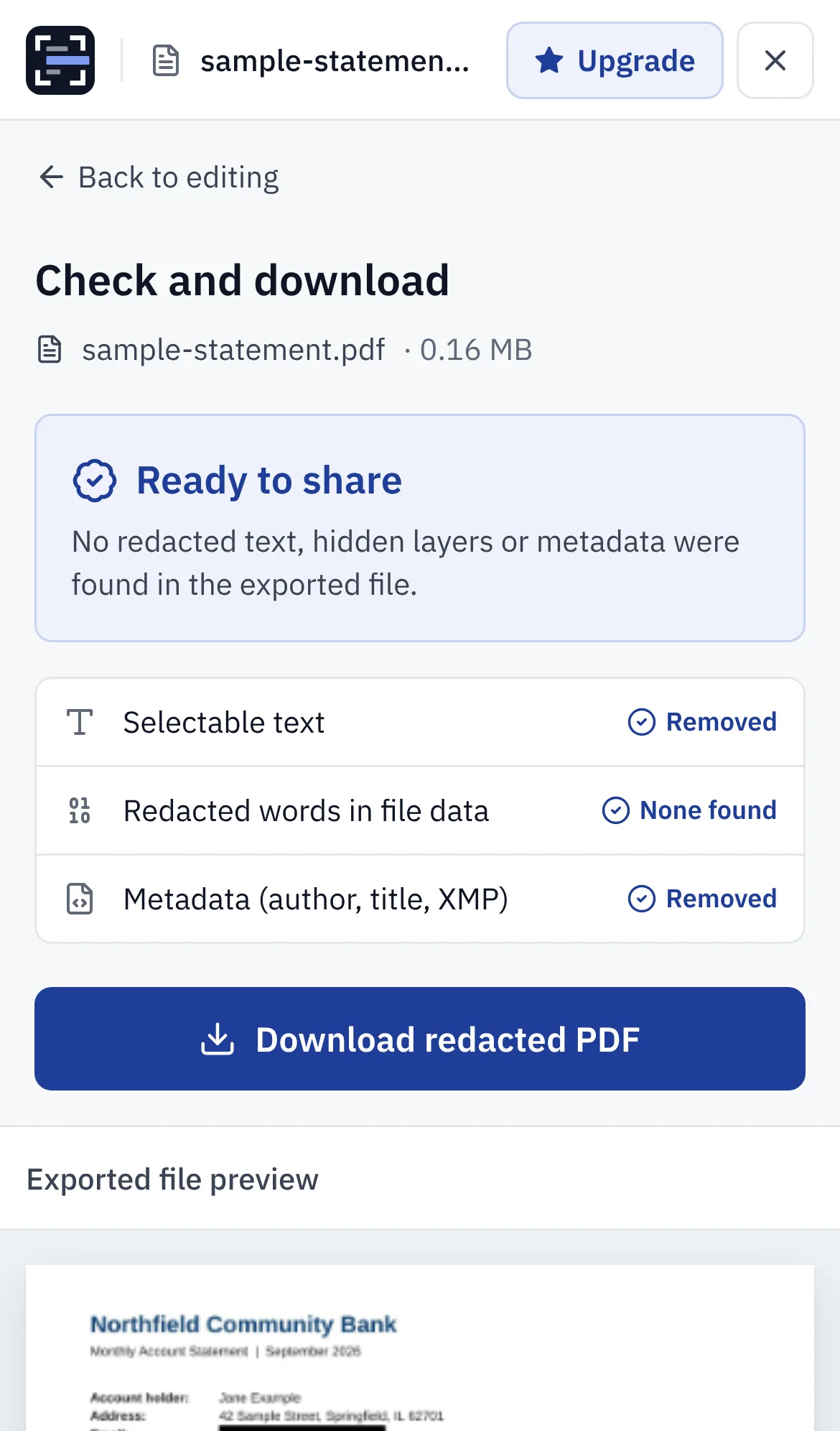
Step 5: Check the result. The tool tests the exported file for selectable text, the redacted words and metadata, and shows a preview. Tap Download. Safari saves the file to the Downloads folder in the Files app, ready to share.
Redact a screenshot with Markup instead
For a quick screenshot, Markup can do the job if you use a filled shape, not the pen or highlighter. In 2018, John Wickham showed that text covered with Markup's highlighter, even with several strokes, could be read again by raising the brightness in the Photos editor.
Step 1: Open the screenshot in Photos, tap Edit, then tap the Markup button.
Step 2: Tap the Add button (+), choose Add Shape, and pick the square.
Step 3: Set the shape's fill to a solid colour at full opacity, then drag and resize it over the text with a margin around it.
Step 4: Tap Done. Share the screenshot, then open the shared copy and zoom in on each box to check the edges.
Why Markup isn't a redaction tool for PDFs
In the Files app, Markup adds your drawings to the PDF on top of the page. Apple doesn't describe Markup as a way to redact, and a shape drawn over text doesn't remove the text from the file. Anyone who copies the text, searches the PDF or opens it in another app may still read what's underneath. The same mistake has exposed text in court filings, such as the 2019 filing by Paul Manafort's lawyers, where the blacked-out text could be copied and pasted.
Photos also keeps your original screenshot in your library. That doesn't affect what you send, but it means the unredacted version is still on your phone and in iCloud Photos if you use it.
Check before you send
- Open the file you're about to send, not the one you edited.
- In a PDF, search for a word you hid. If it is found, the redaction didn't work.
- Zoom in on every box. Partial letters at the edges can give a short word away.
- If a password or code was ever visible in a shared screenshot, change it. Redacting it afterwards doesn't undo the leak.
Try it on your own file
The tool opens PDFs, PNGs and JPGs in your browser. The file is not uploaded.