How to redact a PDF on a Mac
By RedactSnap ·
Preview, the PDF app built into macOS, has had a Redact tool since macOS Big Sur. It removes the text you select when you save. For scanned pages, PDFs with hidden layers, or when you want the result checked, RedactSnap redacts in your browser and flattens every page on export.
Redact a PDF in Preview
Step 1: Duplicate the PDF first (File > Duplicate). Preview's redactions are permanent once you save and close.
Step 2: Choose Tools > Redact, or click the Redact button in the Markup toolbar. Preview shows a warning that redacted content is removed.
Step 3: Drag over the text or area to hide. Preview draws a black box over it.
Step 4: Save and close. Until you close the file, Edit > Undo removes a redaction.
Step 5: Reopen the saved PDF and use Edit > Find to search for a word you hid. If it is found, it is still in the file.
Where Preview falls short
Preview's Redact tool works on the text you select. PDFs can hold more than that: text in hidden layers, form fields and annotations, text that runs past the edge of the page, and the document's metadata. Eclectic Light warns that a PDF can hold hidden objects that a visible redaction doesn't reach.
Preview also doesn't find anything for you. On a 30-page statement, every account number and email has to be found and boxed by hand. And it is easy to pick the Rectangle shape by mistake, which only draws a box on top.
Redact a PDF on a Mac in your browser
RedactSnap runs in Safari, Chrome or Firefox and doesn't upload the file. It finds common personal data for you, flattens every page to an image on export, and checks the exported file before you download it.
Step 1: Open redactsnap.com/app and drop the PDF on the page. Click Find sensitive data, then Scan document. Smart Scan lists emails, phone numbers, card numbers and US Social Security numbers, and reads scanned pages with OCR.
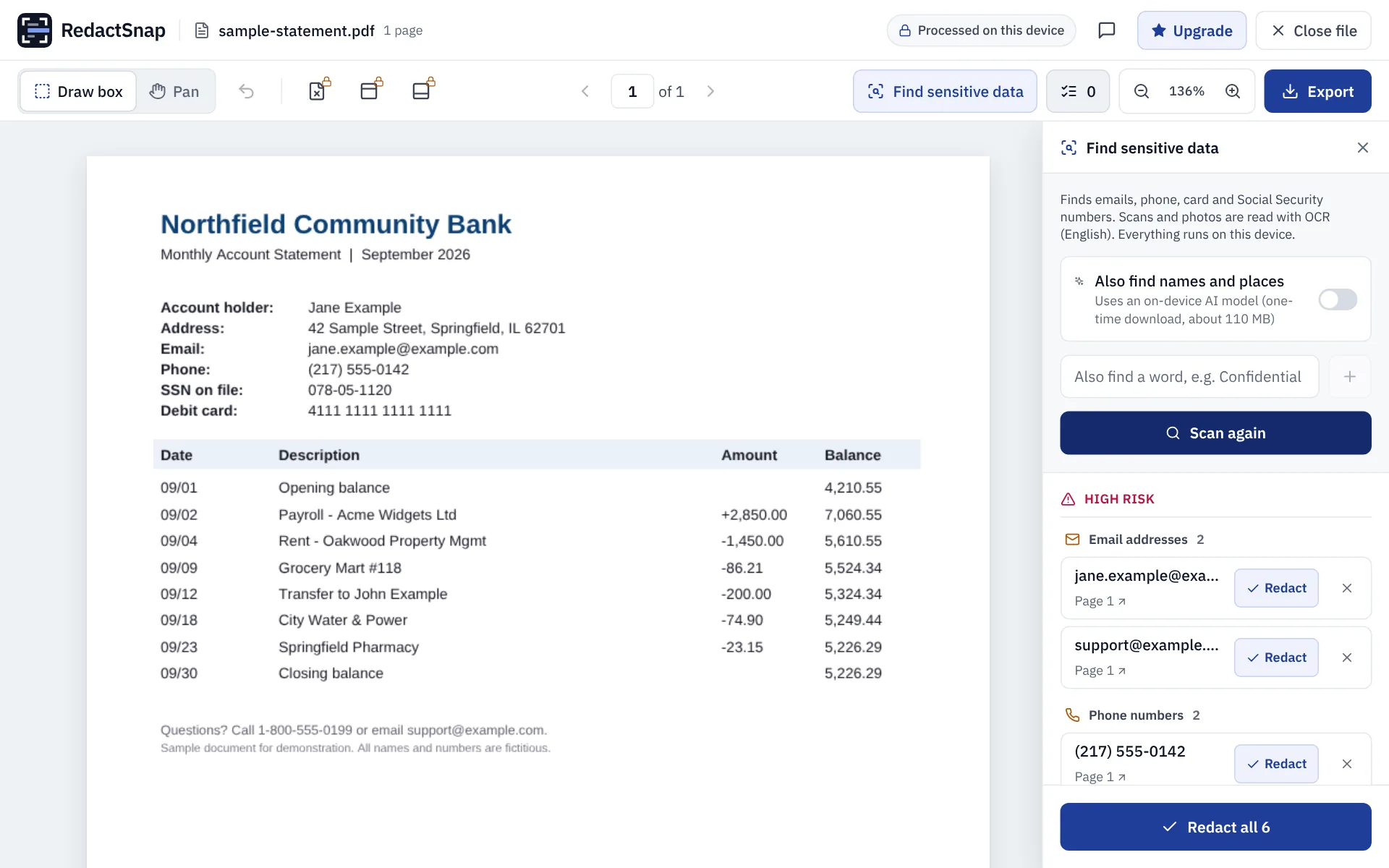
Step 2: Click Redact all, or Redact on each item, and drag boxes over anything else. Then click Export.
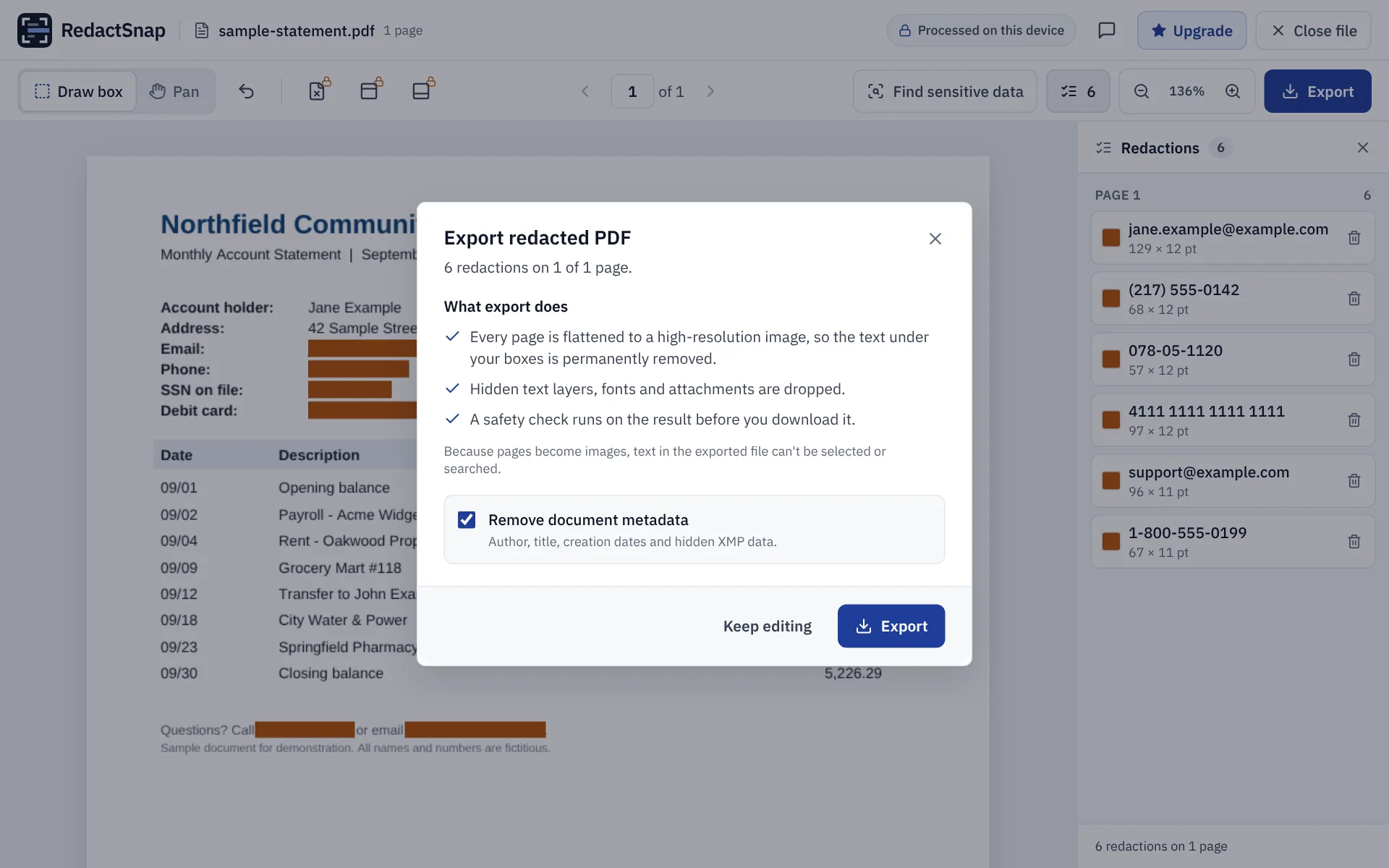
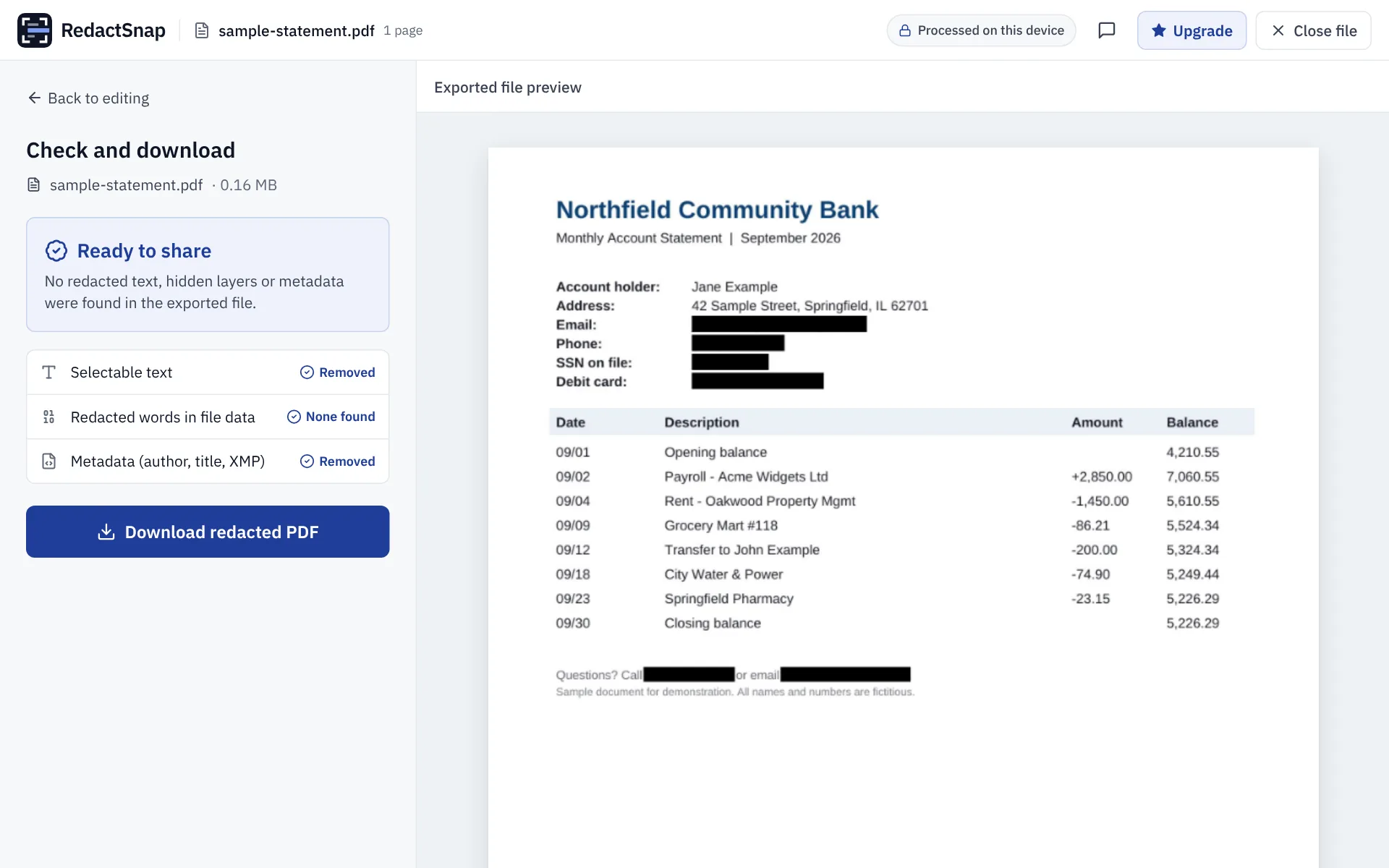
Step 3: The tool checks the exported file for selectable text, the words you redacted and metadata. Download it when it says Ready to share.
Try it on your own file
The tool opens PDFs, PNGs and JPGs in your browser. The file is not uploaded.