How to redact a spreadsheet
By RedactSnap ·
Spreadsheets leak in ways documents don't. Hiding a column, filtering out rows or setting the text to white leaves the data in the file, and formulas, comments and other sheets can repeat it. To share part of a spreadsheet, delete what the recipient shouldn't see from a copy, or export it to PDF and redact the PDF.
What leaks from a spreadsheet
- Hidden rows, columns and sheets. Anyone can unhide them.
- Filtered-out rows, which are still in the file.
- Cells formatted to look empty, such as white text or a custom ";;;" number format.
- Formulas and lookups that pull data from another sheet or file.
- Comments, notes, the document's properties, and version history in OneDrive, SharePoint or Google Drive.
- Pivot tables and charts, which can keep a copy of the data they summarise.
Option 1: delete the data from a copy
Step 1: Save a copy (in Google Sheets, File > Make a copy) and work on the copy.
Step 2: Delete, not hide, the columns, rows and sheets the recipient shouldn't see. Clear any filters first so you can see every row.
Step 3: Replace formulas with their values (copy, then paste values only), so nothing still points at deleted data.
Step 4: In Excel, run File > Info > Check for Issues > Inspect Document to find hidden rows, columns and sheets, comments and document properties.
Step 5: Send the copy as a new file, not a link to a shared spreadsheet with version history.
Option 2: export to PDF and redact it
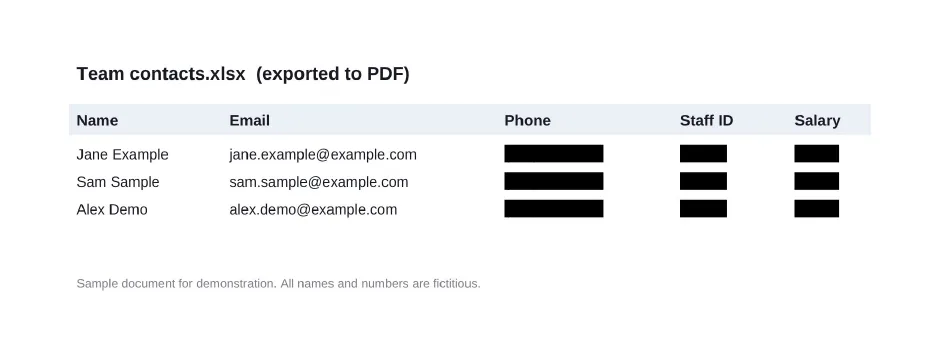
Use this when the recipient only needs to read the data. The screenshots use a fictitious staff list, where names and emails stay and phone numbers, staff IDs and salaries are hidden.
Step 1: Export the sheet to PDF (File > Save As > PDF in Excel, or File > Download > PDF in Google Sheets). Open redactsnap.com/app and drop it in. Click Find sensitive data, add the IDs and figures to hide under "Also find a word", and click Scan document.
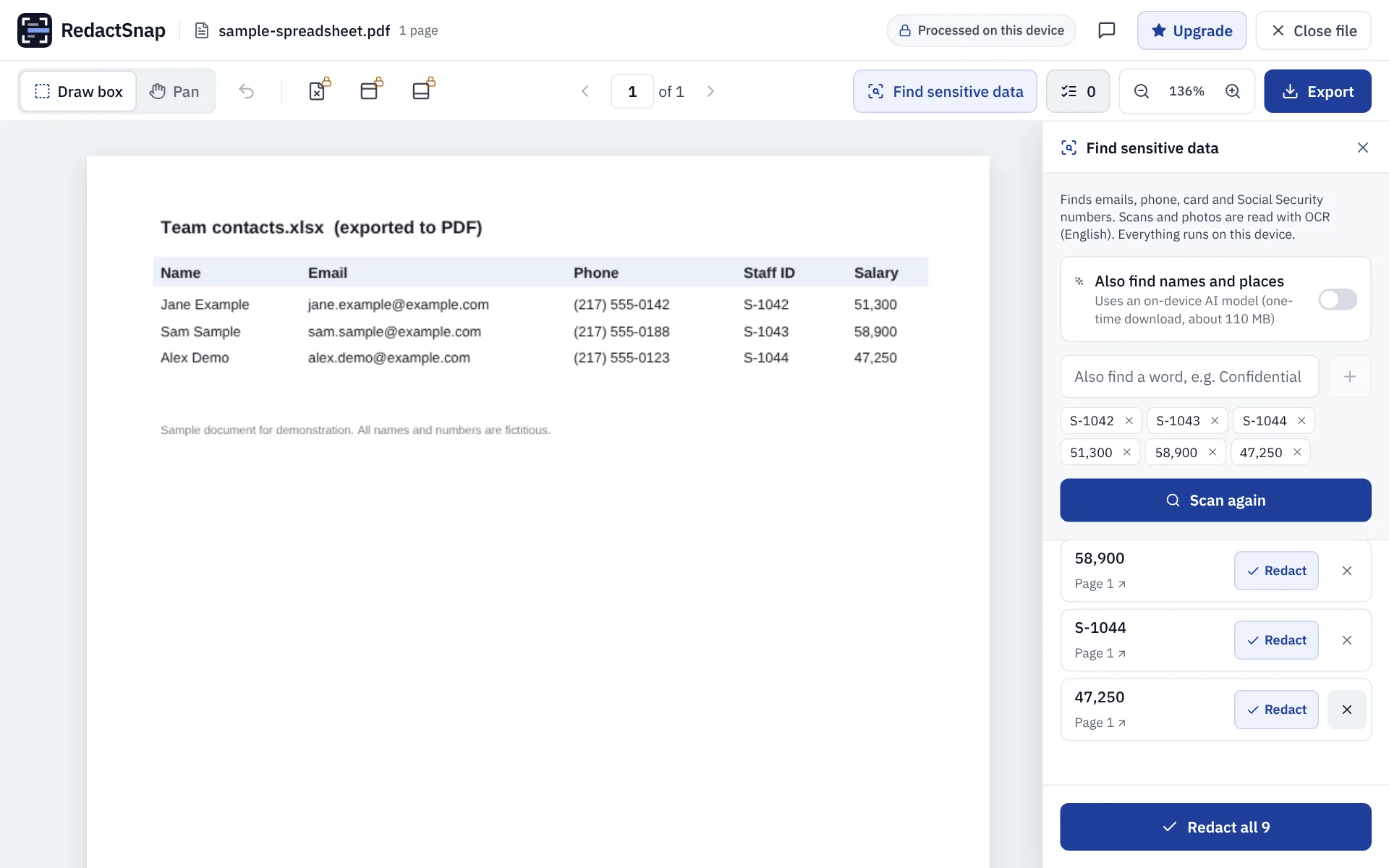
Step 2: Ignore anything that should stay, such as the email addresses here, with the × next to it. Click Redact all.
Step 3: Export and download once the check passes.
Try it on your own file
The tool opens PDFs, PNGs and JPGs in your browser. The file is not uploaded.