How to redact names from a document
By RedactSnap ·
Anonymising a document starts with names, and names are easy to miss: they repeat in headers, signatures and the middle of sentences, and a long document can mention one person dozens of times. Search for each name so every copy is found, then look for the other details that would still identify the person.
Redact names step by step
The screenshots use fictitious meeting minutes.
Step 1: Open redactsnap.com/app and drop in the PDF. Click Find sensitive data and type each name under "Also find a word", one at a time. Add first names and initials on their own too if the document uses them.
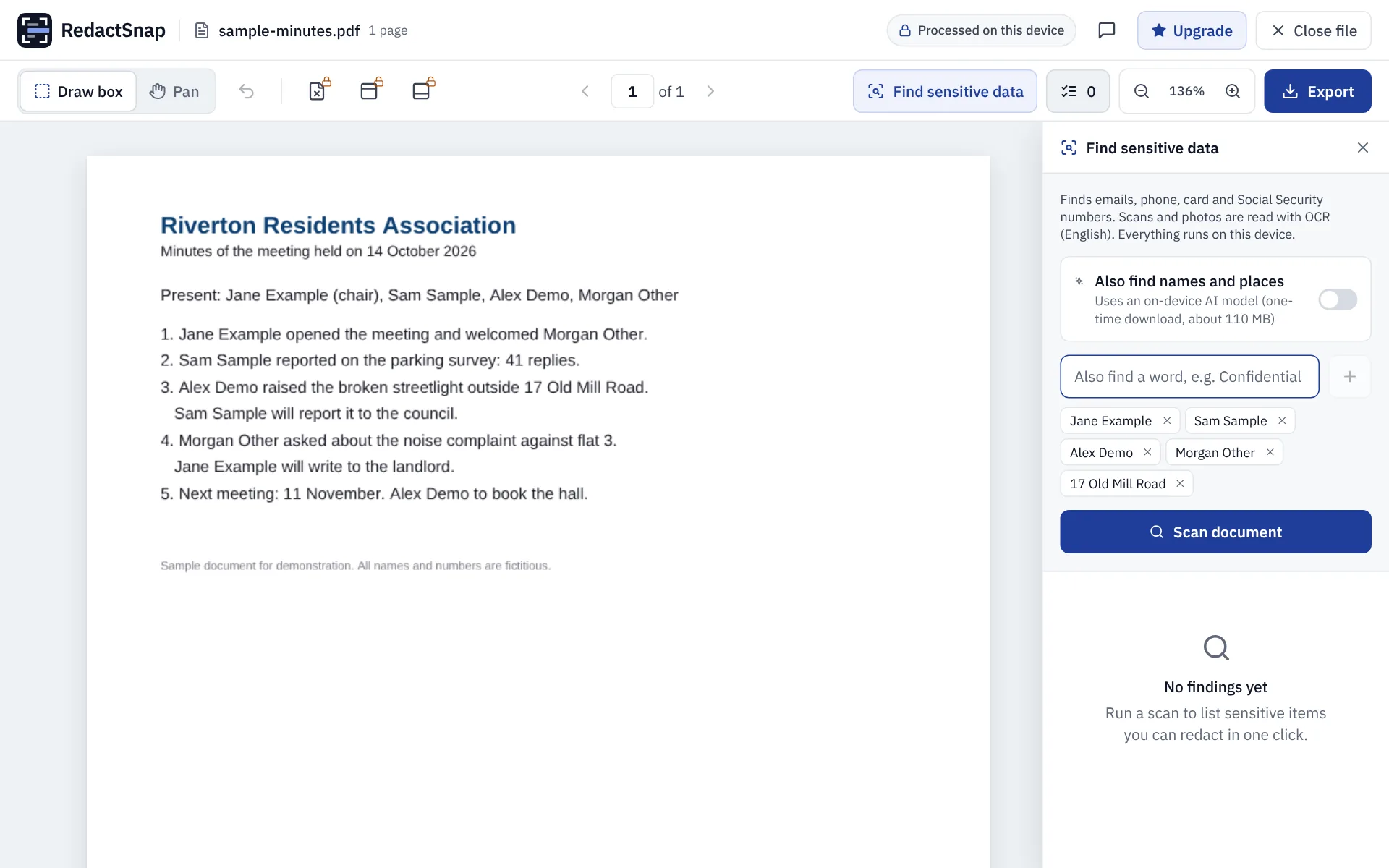
Step 2: Click Scan document. Every copy of every name is listed. To also catch names you didn't think of, turn on "Also find names and places", an on-device model that downloads once and flags people, organisations and places.
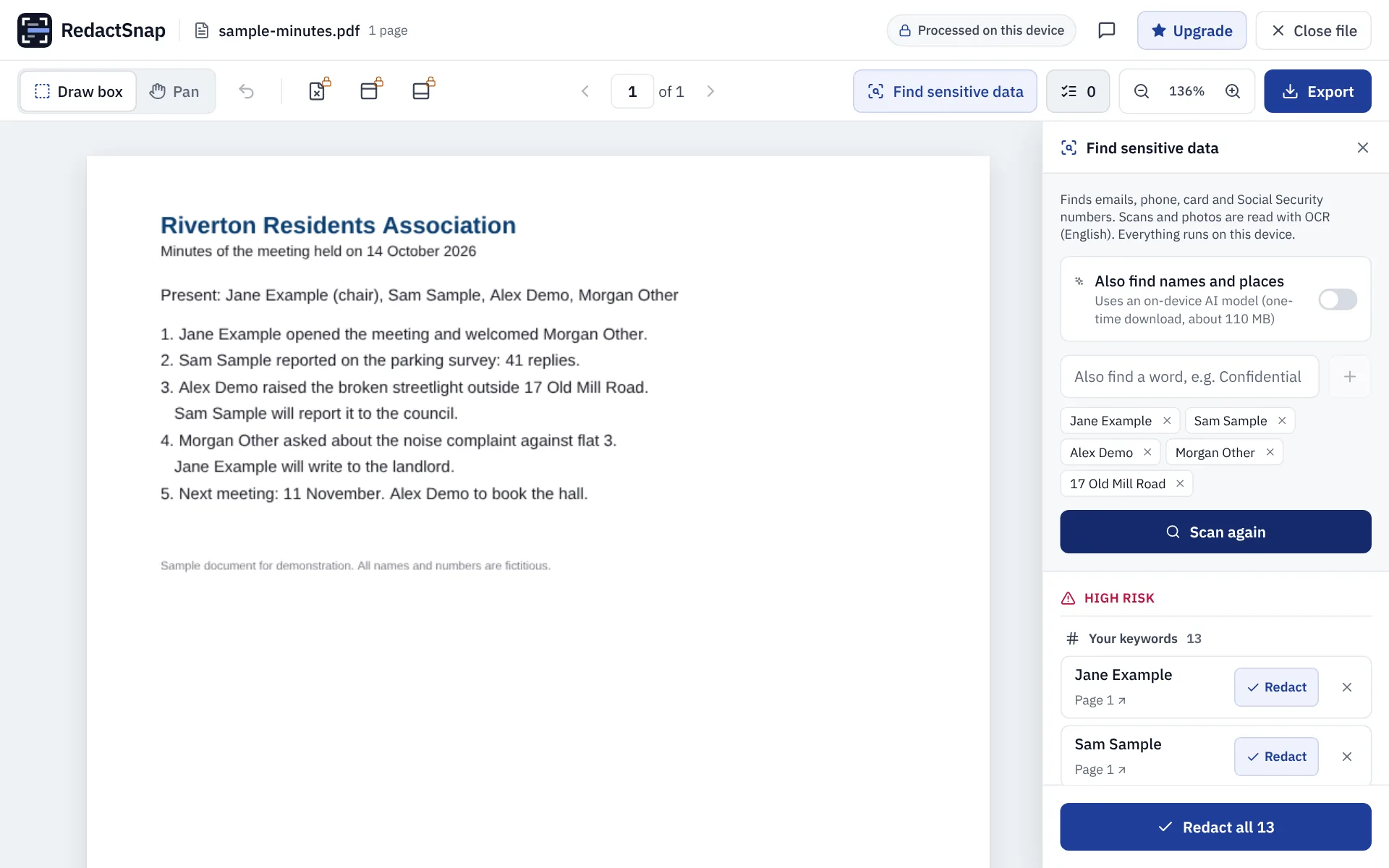
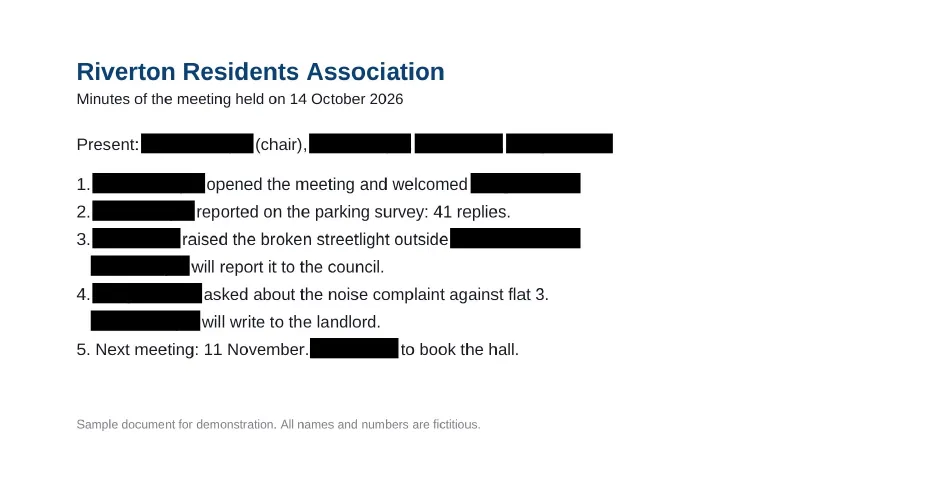
Step 3: Click Redact all, then export and download once the check passes.
What else identifies a person
Removing names isn't always enough. Check for:
- Job titles and roles, especially unique ones ("the chair", "the finance director").
- Email addresses, usernames and signatures, which usually contain the name.
- Addresses, dates of birth, and dates and places of events the reader may know about.
- Pronouns and relationships ("her husband", "his manager") that narrow it down.
- Document metadata, such as the author field, and comments.
Try it on your own file
The tool opens PDFs, PNGs and JPGs in your browser. The file is not uploaded.