How to redact an email before you forward it
By RedactSnap ·
When you forward an email, you send the whole thread: every earlier message, every address in the To and Cc lines, signatures with phone numbers, and attachments. Before you forward or post an email, decide what the reader needs and remove the rest, either in the email itself or in a screenshot or PDF of it.
What a forwarded email carries
- Quoted earlier messages, often below the fold where you don't see them.
- Names and addresses in the From, To and Cc lines of each message.
- Signatures with phone numbers, job titles and office addresses.
- Attachments from earlier in the thread, if your mail app includes them.
- Tracking links and "view in browser" links that can identify the original recipient.
Option 1: edit the email before forwarding
Step 1: Click Forward, then scroll to the bottom of the message.
Step 2: Delete every quoted message the reader doesn't need, and the address lines and signatures in the ones you keep.
Step 3: Remove attachments you don't mean to send. If an attachment needs redacting, redact the file first and attach the new copy.
Step 4: Send it to yourself first, then check the received copy.
Option 2: share a redacted screenshot or PDF
Use this when you post an email publicly or share it outside your mail app. Take a screenshot, or print the email to PDF, then redact the file. The screenshots below use a fictitious email.
Step 1: Open redactsnap.com/app and drop in the screenshot or PDF. Click Find sensitive data, then Scan document. The screenshot is read with OCR on your device, and Smart Scan lists the email addresses and phone numbers in it.
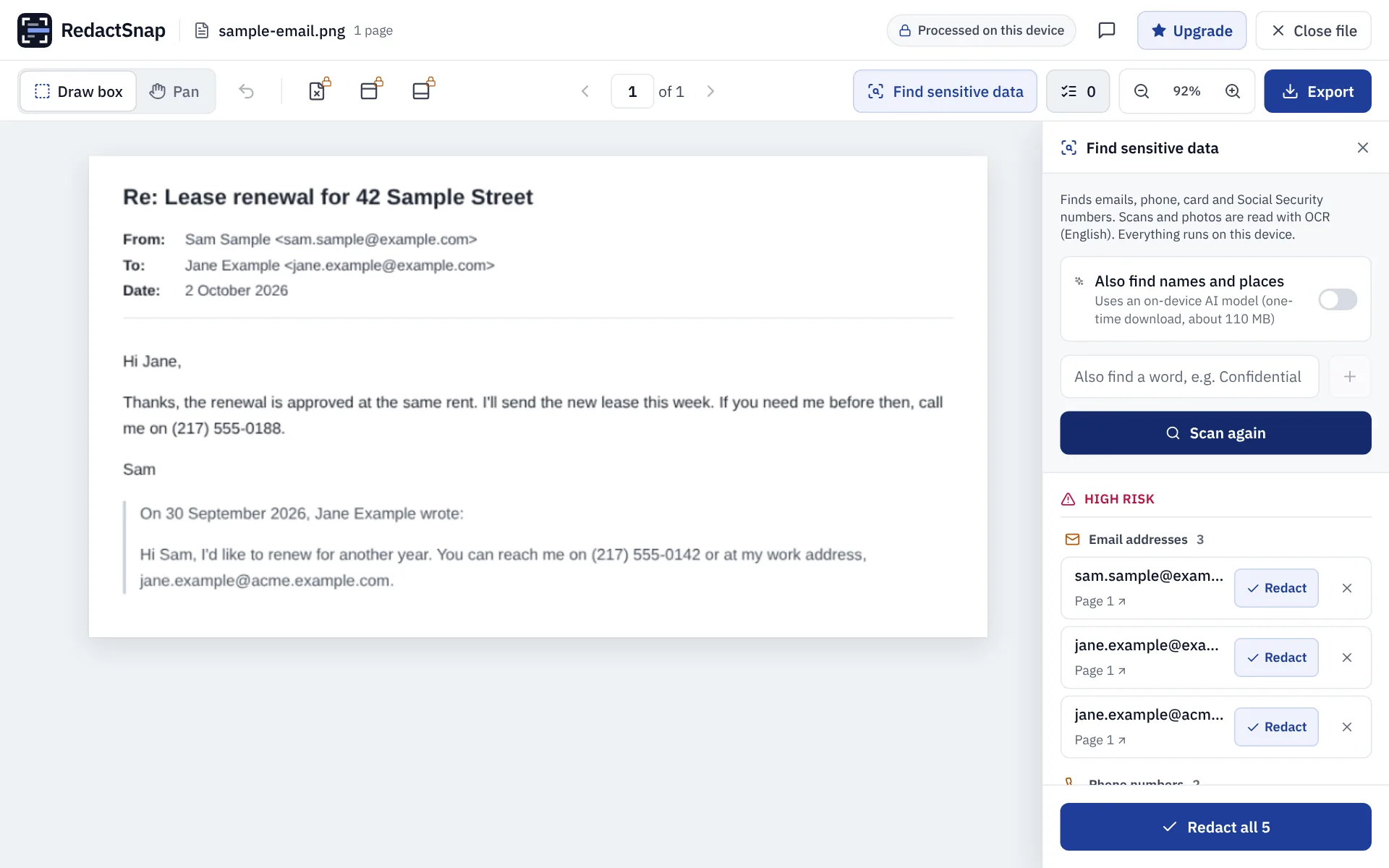
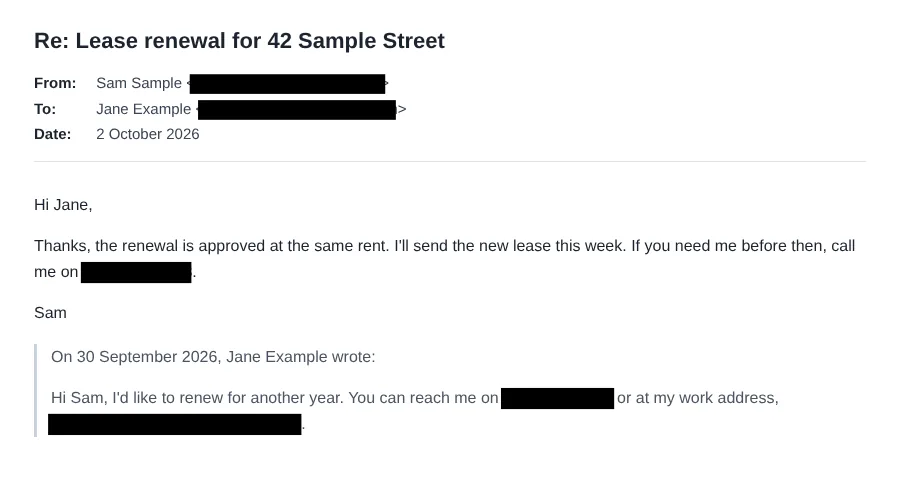
Step 2: Click Redact all, then drag boxes over names, signatures or anything else. OCR can misread small or faint text, so check the screenshot by eye.
Step 3: Export and download. A screenshot downloads as a PNG with the boxes burned in.
Try it on your own file
Both tools run in your browser. The image is not uploaded.