How to redact a photo before you post it
By RedactSnap · · Updated
A holiday photo of a boarding pass, a new car on the driveway, a desk with a laptop open: each can show a name, a booking reference, an address or a login. Before you post a photo, look at everything in the frame, cover what identifies you or someone else with a solid box, and strip the location data.
What to look for in a photo
- Boarding passes and baggage tags. The barcode holds your name and booking reference, which on some airline sites is enough to open your booking.
- Tickets, wristbands and badges with names, barcodes or QR codes.
- House numbers, street signs and views that show where you live.
- Car number plates.
- Screens and paperwork in the background: emails, chat windows, letters, ID cards.
- Children's faces, names on uniforms and school logos.
- Location data. Phone photos can carry GPS coordinates in their EXIF data. See the phone settings below.
Redact a photo step by step
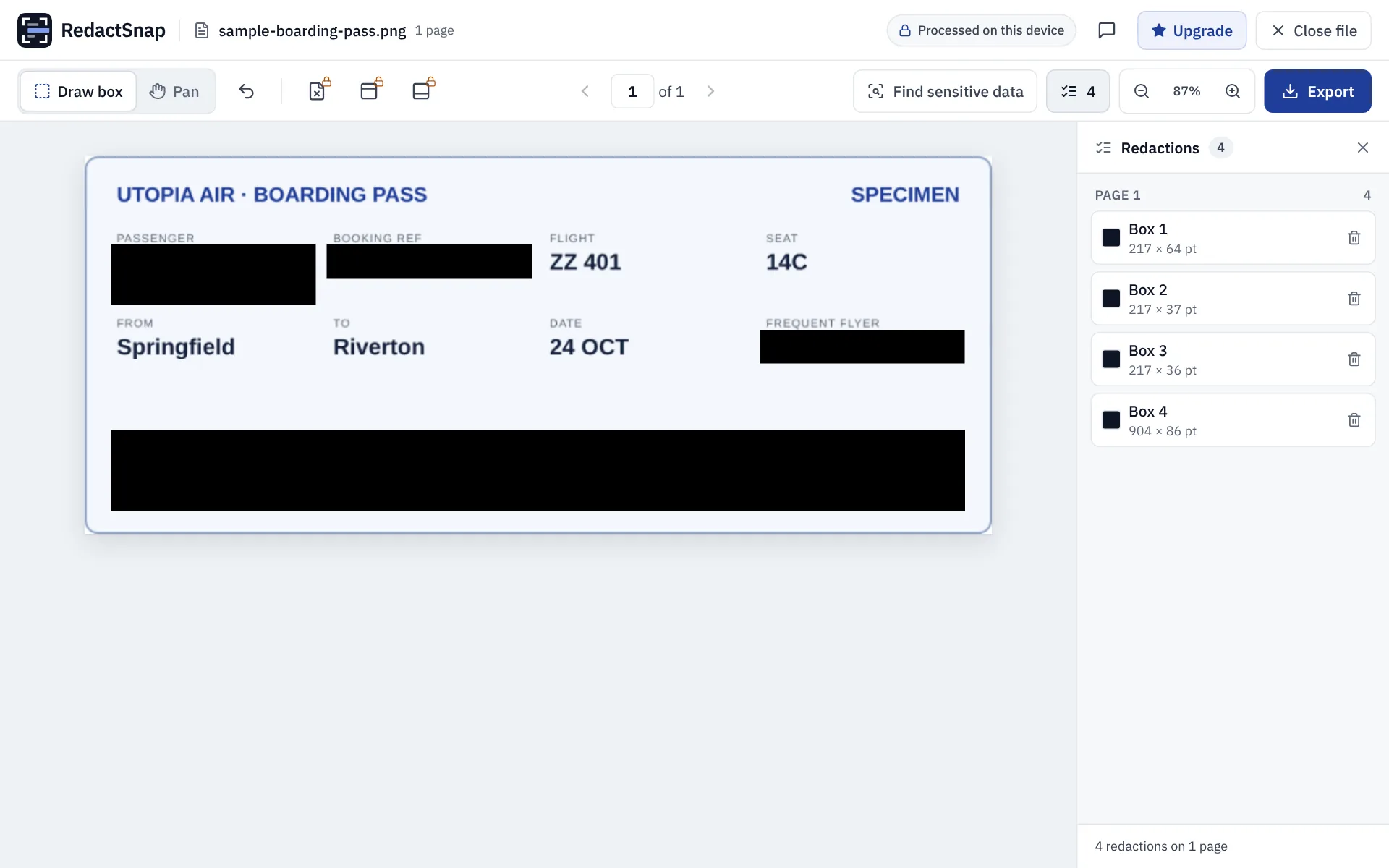
The screenshots use a specimen boarding pass. Smart Scan doesn't detect booking references, barcodes, plates or faces, so cover them by hand.
Step 1: Open redactsnap.com/app and drop in the photo. With the box tool, drag a solid box over each item: here the passenger name, booking reference, frequent flyer number and the whole barcode.
Step 2: Export and download. The photo downloads as a PNG with the boxes burned into the pixels and the original's EXIF data, including GPS location, removed.
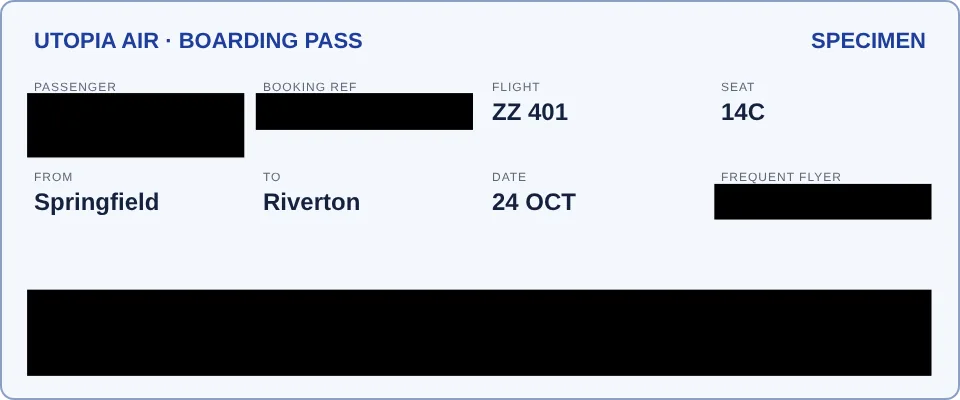
Step 3: Open the downloaded file and zoom in. Check reflections in windows, glasses and screens, which can repeat what you covered.
Remove location data on iPhone and Android
If you post the photo straight from your phone, these settings keep its location out. Menu names vary between phone makers and versions. On any device, the Remove EXIF data tool strips the location from a copy in your browser.
- iPhone, one photo: in Photos, select the photo, tap Share, tap Options at the top and turn off Location. "Location Not Included" appears above Options. The setting resets each time you share.
- iPhone, all new photos: go to Settings > Privacy & Security > Location Services > Camera and choose Never.
- iPhone, a photo you already took: open it, swipe up, tap Adjust next to the location and choose No Location.
- Samsung Galaxy: in Gallery, select the photos, tap Share, and turn on Remove location data at the top of the share sheet before you pick an app.
- Google Photos: in Settings, check the sharing options for removing location from photos shared by link. A location the camera recorded can't be edited in Google Photos, so stop it at the camera instead.
- Any Android phone, all new photos: turn off the location tag in the Camera app's settings, or deny the Camera app location permission in Settings > Apps.
Try it on your own file
Both tools run in your browser. The image is not uploaded.