How to redact source documents before you publish them
By RedactSnap ·
Publishing a document shows readers the evidence, and it can also show who supplied it. A source can be identified by what is on the page, by data inside the file, and by marks a printer or scanner added. Before you publish, decide whether you need to show the document at all, remove what points to the source, and flatten the result so nothing is left underneath.
What can identify a source
- Names, initials, email addresses, phone numbers and signatures, including in "to", "cc" and distribution lists.
- Reference numbers, document IDs, file paths and version numbers that only some people had.
- Headers, footers and stamps such as "printed by", a username, a date and time, or a copy number.
- Watermarks or small wording differences that can be unique to each copy handed out.
- File metadata: the author, organisation, software and edit history.
- Printer tracking dots: faint yellow dots that many colour laser printers add, encoding the printer's serial number and the time of printing.
- How the copy was made. A photo of a screen can show the device, a window title or a username; folds and scan marks show it was printed and carried out.
The case that made printer dots famous
In June 2017, The Intercept published scans of a leaked NSA document. The pages carried yellow tracking dots, and a security researcher decoded them from the published PDF: a printer serial number and the date and time it was printed. The source, Reality Winner, had been arrested two days before and later pleaded guilty. The dots were only one of several clues, but they showed how much a page can carry that no one sees.
Redact a document step by step
Work on a copy, on a computer you trust. RedactSnap runs in the browser, so the file isn't uploaded anywhere.
Step 1: Ask whether readers need the document itself. Quoting it, retyping the relevant passages, or describing it gives away far less than an image of the page.
Step 2: Open the file in RedactSnap and click Find sensitive data. Type the names, usernames and reference numbers you want gone under "Also find a word", and scan. Smart Scan also finds email addresses and phone numbers.
Step 3: Redact what it finds, then draw boxes over signatures, stamps, headers and footers, logos and anything else that narrows down who had the document.
Step 4: Export. Every page is flattened to an image and the file's metadata is removed, and the tool checks the exported file for the words you redacted before you download it.
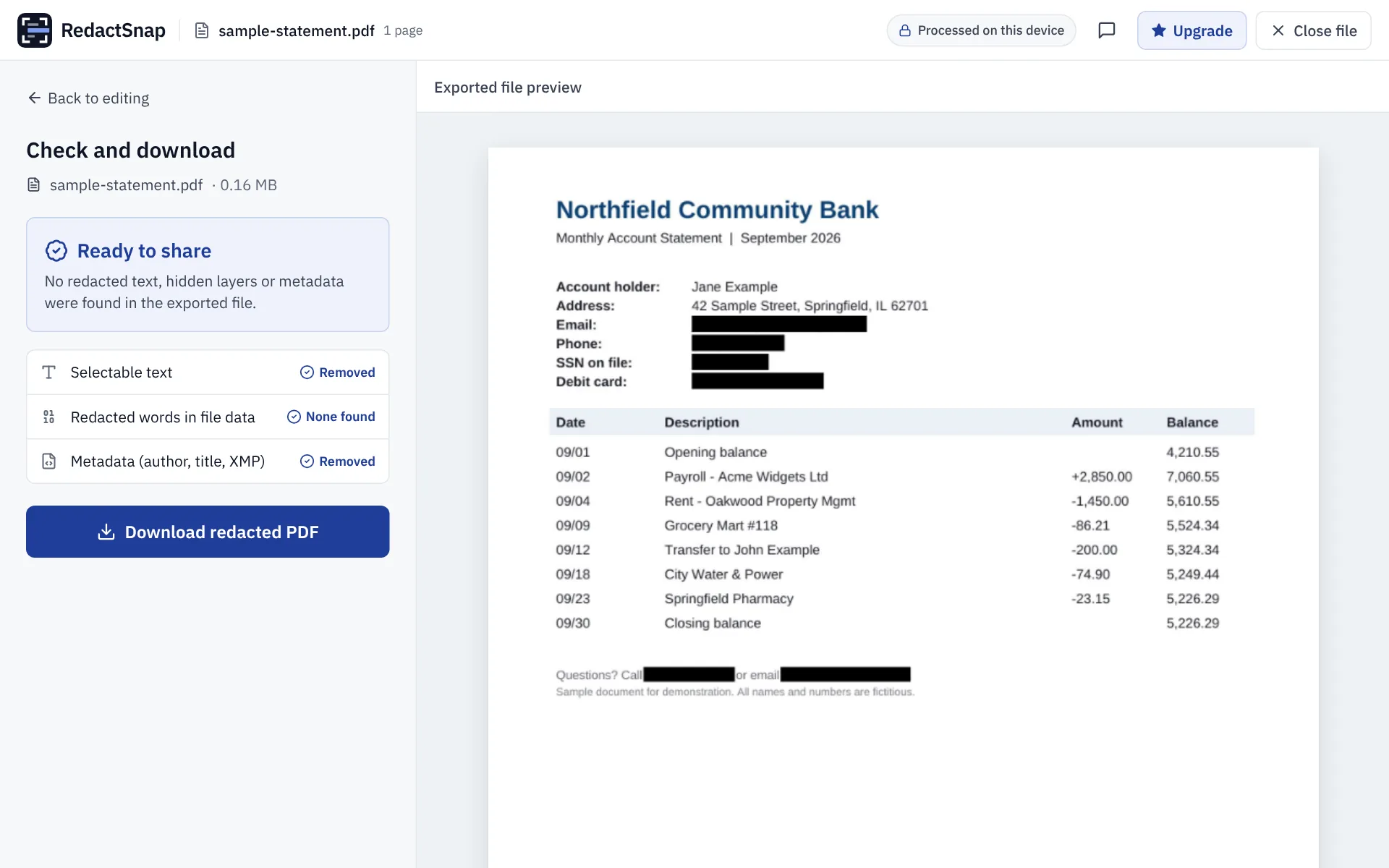
Step 5: Look at the result at high zoom, and have a colleague read it as an insider would: what in the remaining text could only one person have known?
Try it on your own file
The tool opens PDFs, PNGs and JPGs in your browser. The file is not uploaded.