How to check that a redacted PDF is really redacted
By RedactSnap ·
A black box on a page proves nothing about the file. Many redaction failures, including court filings in high-profile cases, were black rectangles drawn over text that was still in the PDF. These five tests take two minutes and catch most of them.
Five tests to run on the file you will send
Run them on the exact file you are about to send, opened fresh, not on the copy in your editor.
Step 1: Search. Open the PDF and search (Ctrl+F or Cmd+F) for a word or number you hid. If it is found, it is still in the file.
Step 2: Select and copy. Drag across a black box, copy, and paste into a plain text editor. If text appears, the box is only on top.
Step 3: Select all. Press Ctrl+A or Cmd+A on each page and paste into a text editor. This catches hidden text, text under images, and white text on a white background.
Step 4: Check the document properties (File > Properties or Document Properties). Author, title, subject and keywords can carry names, case numbers or file paths.
Step 5: Look at the edges. Check headers, footers, page margins, bookmarks, comments, form fields and attachments, which a page-by-page review can miss. Zoom in on each box to check that no part of a letter shows.
If a test fails
Don't patch the file. Go back to the original and redact it with a tool that removes the content: Adobe Acrobat's Redact tool, Preview's Redact tool on a Mac, or a tool that flattens each page to an image.
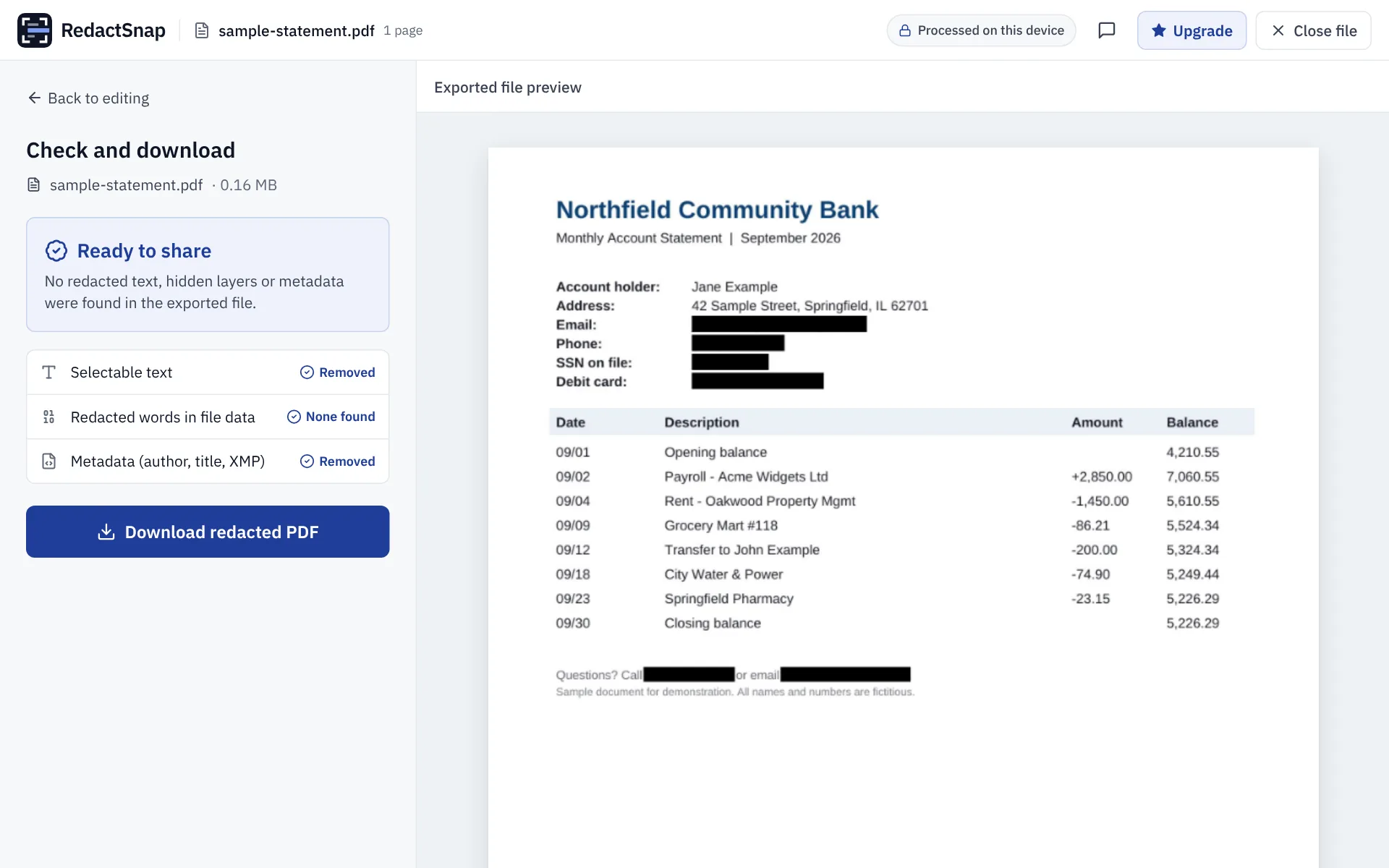
RedactSnap flattens every page on export, so a flattened PDF has no text layer for the search and copy tests to find. It runs the same checks on the exported file before you download it: selectable text, the words you redacted, and metadata.
Try it on your own file
The tool opens PDFs, PNGs and JPGs in your browser. The file is not uploaded.